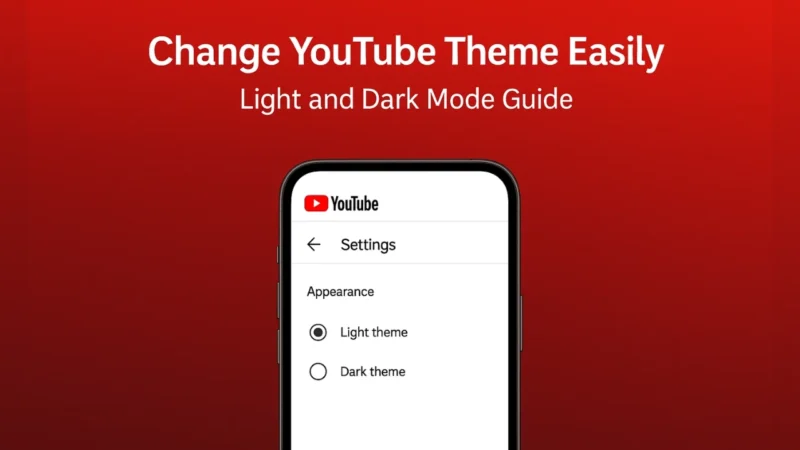
Dark theme is now a staple feature on many apps, and YouTube is no exception. Whether you prefer a darker background for late-night viewing or want a lighter screen during the day, YouTube gives you the flexibility to switch between themes on both mobile and web. If you haven’t explored this setting yet, now’s an ideal time.
Also read: How to Move All Facebook Photos to Google Drive – Simple and Complete Guide
1. Why You Might Want to Use Dark Theme
Here’s why dark mode has become popular:
- It reduces eye strain in low-light environments.
- On OLED or AMOLED screens it can save a bit of battery since fewer pixels are lit.
- It gives a more cinematic look which some users prefer for watching videos.
- On the flip side, light mode gives cleaner visuals in bright daylight or when sharing the screen with others.
So switching between themes based on your environment or preference makes the viewing experience smoother.
2. Where to Find the Theme Setting on YouTube Mobile
If you’re using the YouTube app on Android or iOS, follow these general steps:
- Open the YouTube app.
- Tap your profile icon in the top right corner.
- Go to Settings.
- Tap General (or similar section depending on your version).
- Look for Appearance or Theme.
- You’ll see options like:
- Use device theme (the app follows your phone’s system setting)
- Light theme
- Dark theme
- Choose the option you prefer. If you pick “Dark theme” your screen background will turn dark immediately.
This gives you control within the app without affecting your whole phone’s appearance.
Also read: How to Set Up Android Face Recognition – A Step-by-Step Guide
3. How to Change Theme on YouTube Web Site
If you’re using YouTube on a desktop browser, switching theme is equally simple:
- Open a browser and go to YouTube.
- Make sure you’re signed in.
- Click your avatar in the top right corner.
- Select Appearance (or Theme).
- Choose between:
- Use device theme
- Light
- Dark
- The interface will change accordingly.
Using “Use device theme” means it will follow your computer’s overall light or dark mode setting, which is convenient if you already use dark mode system-wide.
4. Which Theme Setting to Choose and Why
Here’s how you might decide:
- Choose Dark theme if you watch videos at night or want a sleek immersive look.
- Choose Light theme if you watch in bright daylight or screens are shared with others.
- Choose Use device theme if you already switch your phone or computer between light and dark; this makes YouTube follow that automatically.
Using a consistent theme across apps and devices helps reduce visual fatigue and gives a unified experience.
Also read: How to Use Google Maps Offline for Navigation Without Mobile Data
5. Troubleshooting Common Issues
Sometimes the theme doesn’t change or reverts back — here are some fixes:
- Make sure your app is updated to the latest version.
- Clear the YouTube app cache (on mobile) and restart.
- On desktop, try refreshing the page or clearing browser cache.
- If “Use device theme” option is greyed out, check your phone’s or OS’s theme settings.
- In some cases, region or version of YouTube may delay rollout of dark theme features — wait or update.
Final Thoughts
Switching between light and dark themes on YouTube is a small tweak with big benefits. It can make your viewing experience more comfortable, visually balanced and consistent with your environment. Whether you prefer the darker look or the lighter one, knowing where to change it gives you control. Give it a try and see which mode works best for your eyes and your setup.
Also read: How to Use Android’s Screen Time Tools to Control Your Phone Addiction