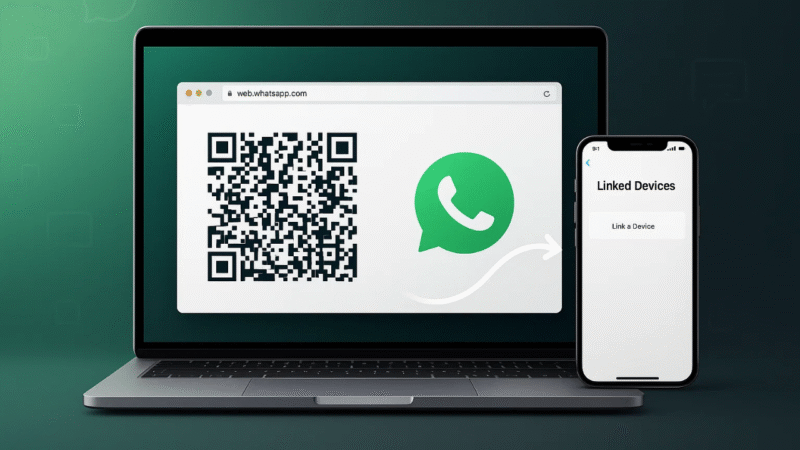
If you want to use WhatsApp on your Mac or Windows PC without installing any software, the browser method is the easiest option. You do not need to download the desktop app. All you need is your phone, a stable internet connection, and a browser like Chrome, Safari, Edge, or Firefox.
This guide will walk you through how to log in to WhatsApp Web step by step.
Also read: How to Use Instagram on PC Without App or Emulator
What Is WhatsApp Web
WhatsApp Web is the official browser version of WhatsApp. It lets you:
- Send and receive messages
- View photos and videos
- Reply to chats faster using a keyboard
- Sync your mobile chats instantly
- Use WhatsApp on multiple devices
And the best part is that you don’t have to install anything on your computer.
How to Log In to WhatsApp on Mac or Windows Through Browser
1. Open the Official WhatsApp Web Page
On your Mac or Windows laptop:
- Open your browser
- Type web.whatsapp.com
- Press Enter
You will now see a QR code on the screen.
2. Open WhatsApp on Your Phone
Now unlock your phone and open WhatsApp.
- For Android: tap the three dots on top right
- For iPhone: go to Settings
Then select Linked Devices.
3. Link Your Phone to the Browser
Inside Linked Devices:
- Tap Link a Device
- Your phone camera will open
- Point the camera at the QR code on your computer
Within a second, your WhatsApp will open on the browser.
4. Start Using WhatsApp on PC
Now you can:
- Chat with anyone
- Reply faster with keyboard
- Send documents, images, and videos
- Use shortcuts for quick navigation
Everything stays synced with your phone.
Also read: Use One WhatsApp Account on Two Phones Officially
Can You Use WhatsApp Web Without Your Phone
You can keep WhatsApp Web logged in even if your phone is not nearby, as long as:
- Your phone has been logged in at least once
- Your phone has internet at the time of linking
After linking, the session stays active.
How to Log Out of WhatsApp Web
You can log out from the computer or your phone.
From WhatsApp Web
- Click the menu button (three dots)
- Select Log Out
From Your Phone
- Go to Linked Devices
- Select the active session
- Tap Log Out
Also read: How to Check If Your Gmail Account Is Hacked and How to Fix It
Final Thoughts
Using WhatsApp on Mac or Windows without installing any app is extremely simple. The browser version gives you the same convenience with fast access and easy typing. Just open WhatsApp Web, scan the code, and your chats instantly sync on your computer. It is the fastest way to stay connected while working on your laptop.