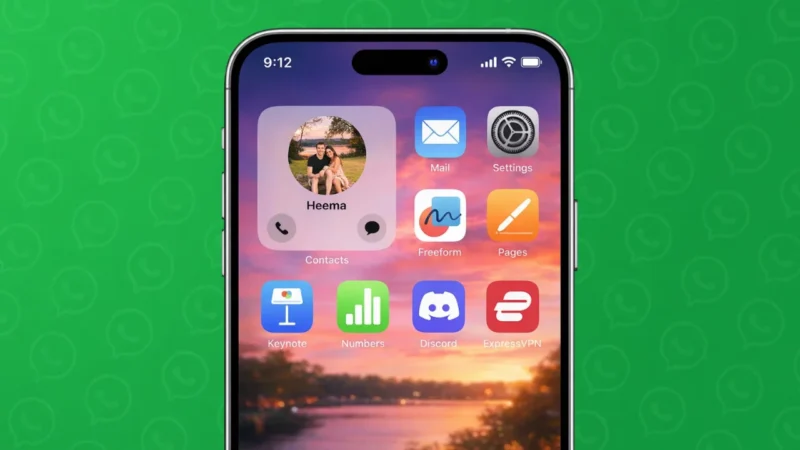
Opening the same WhatsApp chat again and again can feel slow, especially when it is someone you message daily. On iPhone, you can create WhatsApp contact shortcuts that let you open a specific chat in just one tap. This guide explains the official and safe ways to do it using built-in iOS features.
Also read: How to Lock Individual and Group Chats in WhatsApp on iPhone
What Is a WhatsApp Contact Shortcut on iPhone
A WhatsApp contact shortcut is a quick way to jump directly to a specific chat without opening the app and searching for the contact. When set up correctly, tapping the shortcut opens WhatsApp straight to that person’s conversation.
iOS does not offer a native WhatsApp shortcut button like Android widgets, but you can still achieve the same result using Apple’s Shortcuts app.
Method 1: Create a WhatsApp Chat Shortcut Using the Shortcuts App
This is the most reliable and official method on iPhone.
Step 1: Open the Shortcuts App
- Open the Shortcuts app on your iPhone
- If you do not have it, download it from the App Store
Step 2: Create a New Shortcut
- Tap the plus icon in the top right corner
- Tap Add Action
Step 3: Choose WhatsApp Action
- Search for WhatsApp
- Select Send Message via WhatsApp
- Choose the contact you want to create a shortcut for
- Leave the message field empty if you only want to open the chat
Step 4: Name the Shortcut
- Tap the shortcut name at the top
- Rename it to the contact’s name
- Tap Done
Step 5: Add Shortcut to Home Screen
- Open the shortcut settings
- Tap Add to Home Screen
- Choose an icon and color if you want
- Tap Add
Now you will see a WhatsApp contact icon on your Home Screen. Tapping it opens that chat instantly.
Also read: How to Delete WhatsApp Call History on Android and iOS Devices
Method 2: Use Siri to Access WhatsApp Contacts Faster
If you prefer voice access instead of icons, Siri can help.
- Open WhatsApp
- Open the chat with the contact
- Say “Hey Siri, send a WhatsApp message to [contact name]”
After a few uses, Siri learns this behavior and suggests the contact on your lock screen, search screen, or Siri Suggestions widget.
Method 3: Use the Contacts App for Quick Access
This method does not create a Home Screen icon, but it speeds up access.
- Open the Contacts app
- Open the contact you chat with on WhatsApp
- Tap Message and choose WhatsApp
- Save the contact for faster future access
This is useful if you already use the Contacts app frequently.
Things to Keep in Mind
- WhatsApp must be installed and updated
- The Shortcuts app works best on the latest iOS version
- You can create multiple shortcuts for different contacts
- Removing the shortcut does not delete the chat or contact
Can You Create Group Chat Shortcuts
Yes. While creating the shortcut, choose a WhatsApp group instead of an individual contact. The shortcut will open the group chat directly.
Also read: How to Hide Online Status on WhatsApp: Easy Settings You Should Know
Final Thoughts
Creating WhatsApp contact shortcuts on iPhone is a smart way to save time and stay connected with people you message often. The Shortcuts app offers a clean and official solution without using any third-party tools. Once set up, you can open important chats instantly with a single tap, making daily communication much easier.