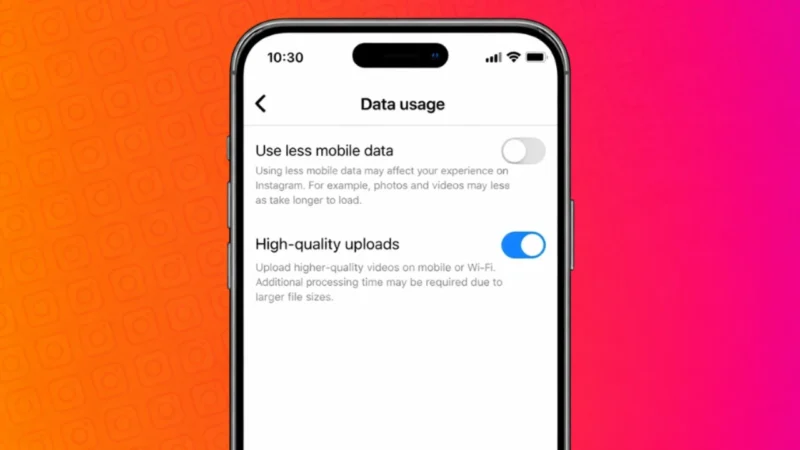
Instagram automatically compresses photos and videos to save data and load content faster. Because of this, uploads sometimes lose clarity, sharpness, or detail. If you want your posts, reels, and stories to look better, you need to enable high quality uploads manually.
This guide explains what high quality uploads are, why they matter, and how you can turn them on step by step.
Also read: How to Add and Use Saved Replies on Instagram
What Are High Quality Uploads on Instagram
High quality uploads allow Instagram to upload your photos and videos at better resolution with less compression. When this option is enabled, your content keeps more detail, sharper colors, and improved video clarity.
Instagram still applies some compression, but the quality loss is much lower compared to default settings.
Why You Should Enable High Quality Uploads
Turning on this setting is useful if you:
- Upload photos taken from a good camera or flagship phone
- Post reels and videos regularly
- Care about visual quality and branding
- Manage a creator or business account
The only downside is that high quality uploads use more mobile data.
Also read: How to Change Instagram Password on Your Phone or Desktop
How to Turn On High Quality Uploads on Instagram
Follow these steps on Android or iPhone.
Step 1 Open Instagram Settings
- Open the Instagram app
- Go to your profile
- Tap the three line menu in the top right corner
- Select Settings and privacy
Step 2 Open Media Quality Settings
- Scroll down and tap Data usage and media quality
- Look for an option related to upload quality
Step 3 Enable High Quality Uploads
- Turn on Upload at highest quality
Once enabled, Instagram will upload your photos and videos in better quality whenever possible.
Should You Use High Quality Uploads on Mobile Data
If you use limited mobile data, you should be careful. High quality uploads can consume significantly more data, especially for reels and long videos.
For best results:
- Use WiFi while uploading
- Enable data saver only when needed
- Upload large videos from a stable internet connection
Also read: How to See What Email You Used for Instagram
Does High Quality Upload Work for Stories and Reels
Yes. When this setting is turned on, it applies to:
- Instagram posts
- Stories
- Reels
However, the final quality still depends on your original file and internet speed.
Tips to Get the Best Upload Quality on Instagram
- Record videos in good lighting
- Avoid excessive editing before upload
- Upload directly from the Instagram app
- Keep your app updated
These small steps help Instagram process your content better.
Also read: How to Add Your Pronouns on Instagram Profile
Final Thoughts
If you care about how your photos and videos look on Instagram, turning on high quality uploads is a smart move. It takes only a few seconds to enable and can noticeably improve how your content appears to viewers. Just remember to upload on WiFi to avoid unnecessary data usage.