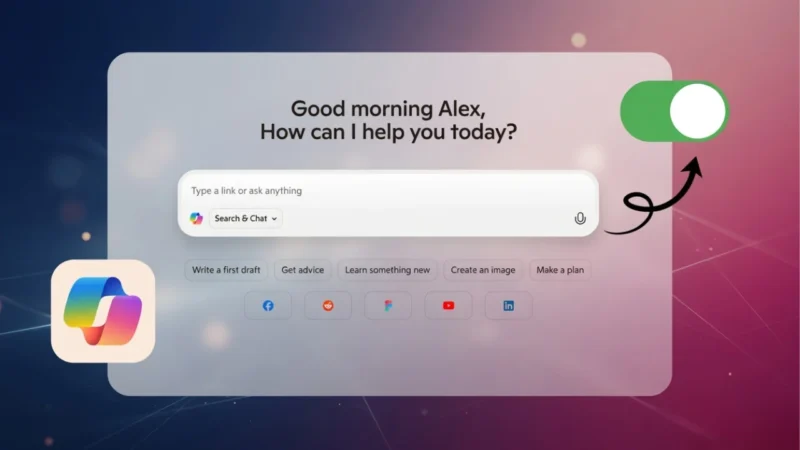
Microsoft Copilot is built into several Microsoft products, including the Edge browser. While it can be useful for some users, others find it distracting or have concerns about privacy and data usage.
The good part is that you can hide Copilot, reduce its activity, and limit how much it affects your browsing experience.
Also read: How to Delete and Archive Chats in ChatGPT (Complete Guide for Clean and Organized Conversations)
Can You Fully Remove Copilot?
You should understand this clearly:
- You cannot completely uninstall Copilot in most cases
- But you can disable or hide it almost entirely
So the goal is not removal, but control.
Turn Off Copilot in Microsoft Edge
If Copilot appears in your Edge sidebar, you can disable it through settings.
Steps:
- Open Microsoft Edge
- Click the three-dot menu in the top-right corner
- Go to Settings
- Select Sidebar from the left menu
- Find the Copilot option
- Turn it off
After doing this, Copilot will no longer appear in the Edge sidebar.
Reduce AI Suggestions in Bing
Even after disabling Copilot, Bing may still show AI-based suggestions.
Steps:
- Open Bing in your browser
- Click the menu icon
- Go to Settings
- Select More Options
- Turn off search suggestions
This will reduce AI prompts while searching.
Also read: How to Turn Off Autoplay on YouTube (Mobile, PC, TV) – Complete Guide for All Devices
Hide Copilot in Windows 11
Copilot is also integrated into Windows, so you may want to hide it there as well.
Steps:
- Open Settings
- Go to Personalization
- Select Taskbar
- Find the Copilot option
- Turn the toggle off
- Restart your computer
This removes Copilot from the taskbar.
Disable Copilot in Microsoft Apps
Some Microsoft apps like Word or Excel may include Copilot features.
Steps:
- Open Word, Excel, or another Microsoft 365 app
- Click File
- Go to Options
- Look for Copilot settings
- Disable it if available
If you do not see this option, check privacy or connected experiences settings.
Limit Data Collection and Personalization
If your concern is privacy, you should adjust related settings.
You can:
- Turn off personalization features
- Disable saved activity and history
- Remove stored data
- Disconnect services like OneDrive or Outlook if not needed
This helps reduce how much Copilot uses your data.
Why Some Users Turn Off Copilot
Common reasons include:
- It feels distracting during work
- It is not useful for their tasks
- Concerns about data usage
- Preference for a cleaner interface
If it does not add value, turning it off makes sense.
Also read: How to Turn Off Apple Intelligence if You’re Not Using It
Final Thoughts
Disabling Copilot in Microsoft Edge is straightforward and helps create a cleaner browsing experience. While complete removal is not possible, you can reduce its presence significantly.
Adjusting these settings allows you to use your system in a way that suits your needs without unnecessary interruptions.