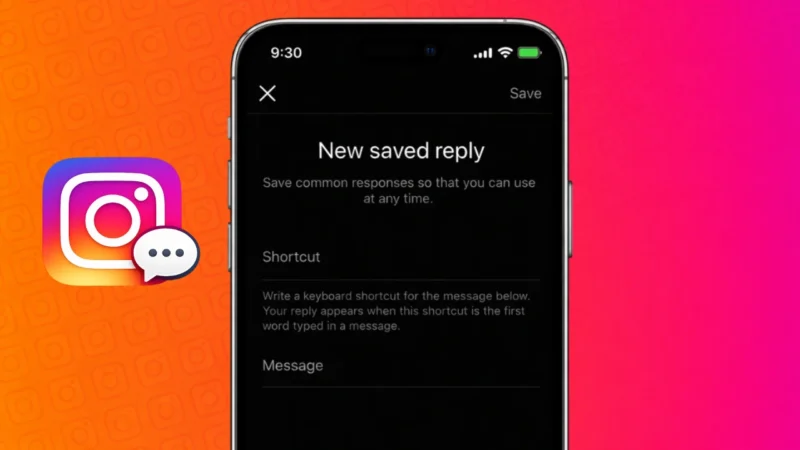
If you reply to the same questions again and again on Instagram, Saved Replies can save you a lot of time. This feature lets you create short message templates that you can quickly insert into DMs instead of typing full replies every time.
Saved Replies are especially useful for creators, businesses, and anyone who gets frequent messages with similar questions.
This guide explains how to add and use Saved Replies on Instagram, step by step.
Also read: How to Change Instagram Password on Your Phone or Desktop
What Are Saved Replies on Instagram
Saved Replies are pre-written messages that you can store inside Instagram. Once created, you can insert them into chats using a shortcut.
They help with:
- Faster replies to common questions
- Consistent responses
- Better DM management
- Reduced typing effort
This feature is built into Instagram and does not require any extra apps.
Who Can Use Saved Replies on Instagram
Saved Replies are available for:
- Professional accounts
- Business accounts
- Creator accounts
If you are using a personal account, you may need to switch to a professional account to access this feature.
Also read: How to See What Email You Used for Instagram
How to Set Up Saved Replies on Instagram
Follow these steps to create your first saved reply.
Steps on Android and iPhone
- Open the Instagram app
- Go to your profile
- Tap the menu icon
- Open Settings and privacy
- Tap Creator tools and controls or Business tools
- Select Saved replies
- Tap Add new saved reply
- Enter the shortcut (a short word or phrase)
- Write the full message
- Save it
Your saved reply is now ready to use.
How to Use Saved Replies in Instagram Messages
Once saved replies are created, using them is very simple.
Steps
- Open Instagram DMs
- Open any conversation
- Type the shortcut you created
- Tap the saved reply when it appears
- Send the message
The full message will be inserted automatically.
Also read: How to Add Your Pronouns on Instagram Profile
Editing or Deleting Saved Replies
You can change or remove saved replies anytime.
Steps
- Go to Settings and privacy
- Open Saved replies
- Select the reply you want to edit or delete
- Make changes or remove it
- Save
This helps keep your replies updated.
Best Practices for Using Saved Replies
- Keep messages short and clear
- Use easy shortcuts
- Avoid overly generic replies
- Personalize messages when needed
Saved Replies should feel helpful, not robotic.
Also read: How to Save, Access, or Delete Drafts on Instagram
Common Issues With Saved Replies
If you cannot see Saved Replies:
- Check if your account is set to Professional
- Update the Instagram app
- Look under the correct settings section
The feature may appear slightly differently depending on your account type.
Final Thoughts
Saved Replies on Instagram are a simple but powerful tool for managing messages efficiently. Whether you handle customer queries or reply to followers daily, this feature helps you stay quick, consistent, and organized without extra effort. Setting it up once can save hours over time.
Also read: How to Unsync Contacts From Instagram (Step-by-Step Guide)