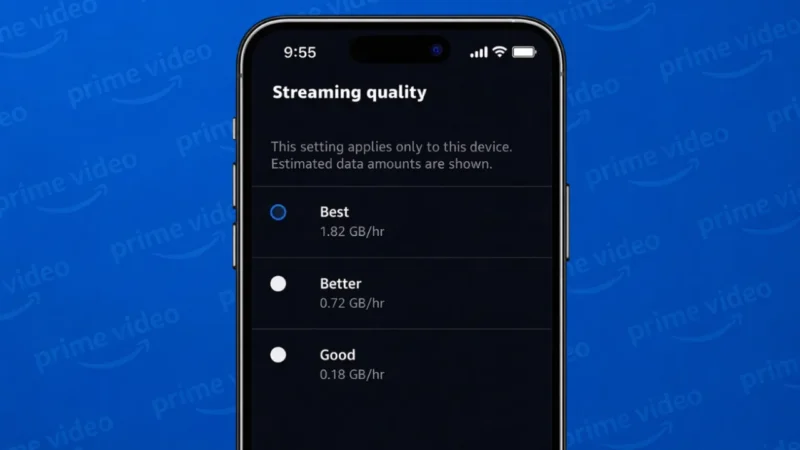
Amazon Prime Video automatically adjusts streaming quality based on your internet speed, but sometimes that is not ideal. You may want better video quality for a large screen or lower quality to save data while streaming on mobile.
The good part is that Prime Video lets you control streaming quality manually on most devices. This guide explains how to change Amazon Prime Video streaming quality on mobile, desktop, and smart devices in a simple way.
Also read: How to Log Out of Amazon App or Website (Step-by-Step Guide)
Why You Might Want to Change Streaming Quality
Changing video quality can help you:
- Save mobile data
- Avoid buffering on slow internet
- Get sharper video on TV or laptop
- Control data usage while traveling
Prime Video offers different quality levels depending on the device you use.
Available Streaming Quality Options on Prime Video
Amazon Prime Video usually provides these options:
- Best / High – Uses more data but gives better clarity
- Good / Medium – Balanced quality and data usage
- Data Saver / Low – Uses less data with lower resolution
The exact names may vary slightly by device.
Also read: 3 Ways to Know How Much Time You Spend on YouTube
How to Change Prime Video Streaming Quality on Android and iPhone
On mobile devices, streaming quality can be changed directly inside the app.
Steps
- Open the Prime Video app
- Tap your profile icon
- Open Settings
- Tap Stream & download
- Select Streaming quality
- Choose your preferred option
You can also set a different quality for downloads.
How to Change Streaming Quality on Prime Video Website
On desktop or laptop, Prime Video adjusts quality automatically, but you can still control it during playback.
Steps
- Open Prime Video in your browser
- Play any movie or show
- Click the Settings (gear) icon in the video player
- Select your preferred quality
This works on Windows and macOS browsers.
Also read: 3 Ways to See Liked YouTube Videos on PC and Mobile
How to Change Prime Video Quality on Smart TV and Streaming Devices
On smart TVs, Fire TV Stick, and similar devices, quality is usually managed from settings.
General Steps
- Open Prime Video
- Go to Settings
- Open Streaming settings or Playback settings
- Choose video quality
Some TVs may only allow automatic quality adjustment based on internet speed.
How to Reduce Data Usage on Prime Video
If you are using mobile data or a limited internet plan:
- Select Data Saver quality
- Download videos on Wi-Fi
- Avoid streaming in High or Best quality
- Close background apps that use internet
These steps help control data usage effectively.
Also read: How to Turn On or Off YouTube Dark Theme – Easy Guide
Why Streaming Quality Sometimes Changes Automatically
Prime Video may lower quality automatically if:
- Internet speed drops
- Network is unstable
- Device performance is limited
This is normal and helps prevent buffering.
Final Thoughts
Changing Amazon Prime Video streaming quality is easy and helps you get the best viewing experience based on your internet and device. Whether you want sharper visuals or lower data usage, Prime Video offers flexible options across mobile, desktop, and smart devices. Adjust the settings once, and enjoy smoother streaming without interruptions.
Also read: 3 Ways to Know How Much Time You Spend on YouTube