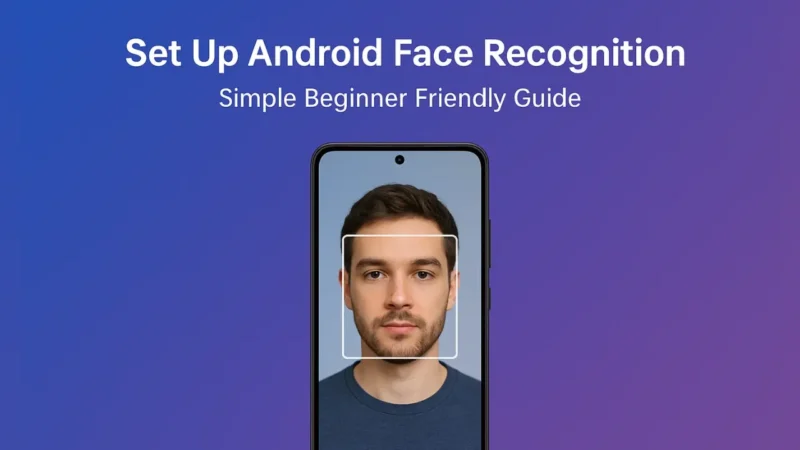
Using your face to unlock your phone sounds futuristic, right? But with Android phones today it’s no sci-fi trick — it’s a built-in feature called Face Recognition. You just look at your phone and it unlocks. No PINs, no patterns, no messing around.
If you’ve got sensitive data, apps you want to keep private, or simply want smoother login for your phone, face recognition is a smart move. Let’s go through everything you need to know — why it matters, how to set it up, and how to use it securely.
Also read: How to Use Google Maps Offline for Navigation Without Mobile Data
Why Face Recognition Is Worth Setting Up
Before jumping into the setup steps, here’s why this feature is a big plus:
- It’s fast — A glance is enough.
- It’s hands-free — Great when your hands are full or dirty.
- It’s built into your phone — No extra apps required.
- It adds a convenient layer of security — Especially when used with a backup PIN or fingerprint.
Yes, fingerprints and PINs are still solid. But face recognition brings both convenience and enough security for everyday use. Now let’s see how you get it ready.
1. Check Device Compatibility and Prepare Your Face
Not all Android phones support the same face recognition methods. Some use just the front camera while others use advanced sensors. Before you begin:
- Make sure your phone model supports face unlock.
- Clean the front camera lens — no smudges.
- Remove any glasses or coverings you often wear, then add an alternate look later.
- Make sure your face is well-lit and you hold the phone at eye level during setup.
Once you’re ready, move to setup.
Also read: How to Make Your Android Phone Feel Faster Without Resetting or Deleting Apps
2. Set Up Face Recognition (General Android Method)
While different brands use slightly different paths, the general process is similar:
- Go to Settings.
- Tap Security & privacy or Biometrics.
- Find Face recognition or Face unlock.
- Enter your existing backup PIN, pattern or password.
- Follow the on-screen prompts to scan your face — slowly move your head so the camera captures different angles.
- Optionally set a “Require eyes open” setting if you want extra security.
That’s it — setup done. Now your phone should unlock when it sees your face.
3. Brand-Specific Setup Examples
Samsung Devices
Go to Settings → Biometrics and security → Face recognition.
Follow the steps, then decide whether you want to use your face for unlocking, verifying apps, or Samsung Pay.
Google Pixel Devices
Open Settings → Security & privacy → Device unlock → Face unlock.
Because of Google’s software optimization you’ll often find fast and reliable performance.
Other Brands (Xiaomi, OnePlus, Oppo, Vivo)
Look for Settings → Password & security (or a similar label) then select Face unlock. Scan your face, then choose whether to skip the lock screen or add alternate appearances.
Each brand may call it slightly differently, but the principle remains the same.
Also read: How to Use Android’s Auto-Reply Features for WhatsApp and SMS Without Any App
4. Add Alternate Appearance / Glasses Mode
If you wear glasses occasionally, a hat, or change hairstyle often, you should add an alternate face:
- Go back into the face unlock menu.
- Choose Add alternate appearance or Add face data.
- Perform another scan while wearing your glasses or hat.
This reduces failed attempts and improves convenience.
5. Manage Face Unlock Security Settings
While face unlock is convenient, you should also tweak a few settings:
- Enable Require eyes open so a photo of you cannot unlock the phone.
- Turn Smart Lock features off if you want stricter security.
- Make sure you still have a strong PIN or password as backup.
- Review apps or payments that face unlock is allowed to access — you may want to restrict some.
This gives you both speed and protection.
6. Troubleshooting Face Recognition Issues
If your phone doesn’t always recognise your face:
- Clean the camera lens.
- Scan your face in good lighting.
- Remove accessories or strong makeup during setup.
- Update your phone’s software.
- Remove and re-scan your face if recognition becomes unreliable.
These steps fix most common problems.
Also read: How to Use Android’s Screen Time Tools to Control Your Phone Addiction
Final Thoughts
Setting up face recognition on your Android phone is one of the smartest moves you can make right now. It adds both convenience and decent security. Yes, it is still wise to keep a backup PIN or fingerprint. But once you’ve done the setup and fine-tuned your settings, unlocking your phone becomes effortless. Start today, set it up properly, and let your phone recognise you — not everyone else.