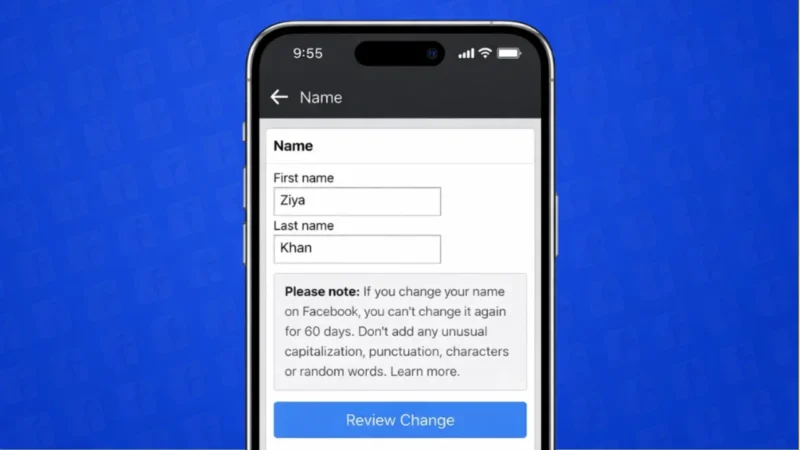
Facebook allows users to update their name and username if they want their profile to reflect a new identity, correct a mistake, or keep things more professional. Whether you want to change your display name or your unique username, Facebook provides simple and official options to do so.
This guide explains how to change your Facebook name and username step by step on mobile and desktop.
Also read: How to Change or Remove Your Last Name on Facebook
Difference Between Facebook Name and Username
Before making changes, it is important to understand the difference.
- Name: This is your display name shown on your profile, posts, and comments.
- Username: This is your unique Facebook URL, such as facebook.com/yourname.
Both are changed separately and follow different rules.
How to Change Your Name on Facebook
You can update your name using the Facebook app or website.
Steps on Android and iPhone
- Open the Facebook app
- Tap the menu icon
- Go to Settings and privacy
- Tap Settings
- Select Personal details
- Tap Name
- Enter your new first and last name
- Review and save changes
Facebook may ask you to wait up to 24 hours for approval.
Steps on Desktop
- Open Facebook in a browser
- Click your profile picture
- Go to Settings and privacy
- Open Settings
- Select Personal details
- Click Name
- Enter your new name
- Save changes
Also read: How to Move All Facebook Photos to Google Drive – Simple and Complete Guide
Facebook Name Change Rules
- You can change your name only once every 60 days
- Symbols, numbers, and unusual capitalization are not allowed
- The name must look like a real name
If Facebook detects unusual activity, it may ask for identity verification.
How to Change Your Facebook Username
Your username controls your profile link and is separate from your name.
Steps to Change Username
- Open Facebook
- Go to Settings and privacy
- Open Settings
- Tap Personal details
- Select Username
- Enter a new available username
- Save changes
Usernames must be unique and may include letters, numbers, or periods.
Also read: How to Remove Friends on Snapchat Using Two Easy Methods
What Happens After You Change Your Username
- Your profile link updates automatically
- Old links may stop working
- Your friends and followers remain unchanged
It is a good idea to inform people if you use your Facebook link professionally.
Can You Change Both Name and Username Together
Yes, but they must be changed separately. Updating one does not automatically update the other.
Common Reasons People Change Their Facebook Name or Username
- Correcting spelling mistakes
- Using a professional or branded name
- Name change after marriage
- Simplifying a long username
Facebook allows flexibility as long as guidelines are followed.
Also read: How to Use Message Reactions in Telegram
Final Thoughts
Changing your name or username on Facebook is straightforward when you use the official settings. Just remember that name changes have limits, while usernames must be unique and available. Keeping your profile information accurate helps friends and contacts recognize you easily.