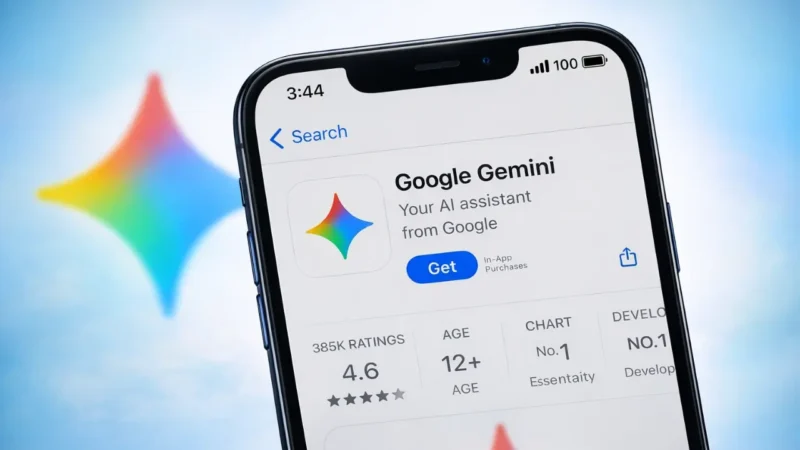
AI image generation is no longer limited to designers or advanced creators. With Google Gemini Pro, you can turn simple text prompts into impressive visuals within seconds. Whether you want social media graphics, blog images, concept art, or creative wallpapers, Gemini Pro makes the process smooth and accessible.
In this guide, you will learn how to create stunning images using Google Gemini Pro, how prompts work, and how to improve your results step by step.
Also read: How to Use Google Gemini for the First Time: A Beginner’s Guide
What Is Google Gemini Pro?
Google Gemini Pro is an advanced AI model developed by Google. It can understand text, generate content, answer questions, and in supported environments, create AI-generated images based on written prompts.
Instead of editing manually in complex software, you simply describe what you want. The AI converts your description into a visual result.
Where Can You Use Gemini Pro for Images?
You can access Gemini through:
- Gemini web interface
- Supported Google tools and integrations
- Developer platforms using Gemini API
Image generation availability may vary depending on region and updates, so always check whether image creation is enabled in your version.
Step 1: Open Gemini
Go to the official Gemini website in your browser and log in using your Google account.
Once inside, you will see a prompt input area where you can type your request.
Step 2: Write a Clear Image Prompt
The quality of your image depends heavily on how you describe it.
Instead of writing:
“Sunset”
Write something more detailed like:
“A cinematic sunset over snow-covered mountains with orange sky reflections on a calm lake, ultra realistic, high detail, 4K resolution”
The more context you provide, the better the result.
Also read: Gemini AI Photo Trend: How to Create Polaroid-Style Pics with Celebrities in Simple Steps
Step 3: Add Style and Mood
To create stunning visuals, include:
- Art style (realistic, watercolor, anime, 3D render, cinematic)
- Lighting (soft light, dramatic shadows, golden hour)
- Camera angle (wide angle, close up, aerial view)
- Resolution hints (high resolution, 4K, ultra detailed)
Example:
“A futuristic city at night, neon lights, cyberpunk style, high detail, cinematic lighting, ultra realistic”
Step 4: Refine the Output
If the first image is not perfect, refine your prompt.
You can say:
- “Make it more vibrant”
- “Add more depth”
- “Increase realism”
- “Make the background blurred”
Gemini learns from adjustments and improves results gradually.
Tips to Create Better Images with Gemini Pro
Here are practical tips that actually make a difference:
1. Be Specific
Avoid short or vague prompts.
2. Mention Colors
Color descriptions improve visual clarity.
3. Define the Mood
Words like dramatic, peaceful, dark, vibrant change the outcome significantly.
4. Avoid Overloading
Do not add too many conflicting instructions.
5. Use Reference Ideas
You can describe a known art style without copying specific copyrighted works.
What Type of Images Can You Create?
With Gemini Pro, you can generate:
- Social media post backgrounds
- Blog featured images
- Product concept designs
- AI wallpapers
- Fantasy art
- Realistic portraits
- Illustration-style graphics
Also read: How to Generate Images With Sora AI: Beginner Friendly Guide
Is Google Gemini Pro Free?
Gemini offers free access with usage limits. Advanced features or higher performance models may require subscription plans. Always review current pricing details inside your Gemini dashboard.
Common Mistakes to Avoid
- Writing one-word prompts
- Ignoring style and lighting details
- Expecting perfection in the first attempt
- Not refining results
AI image creation is often iterative. Small improvements in prompt wording can drastically improve output quality.
Final Thoughts
Creating stunning images with Google Gemini Pro is not about technical skills. It is about learning how to communicate visually through words. The more descriptive and intentional your prompts are, the better your results will be.
Start simple, experiment with styles, refine your prompts, and gradually you will master AI-powered image creation.
Also read: What Is Lovable and How to Use It to Build Apps With AI