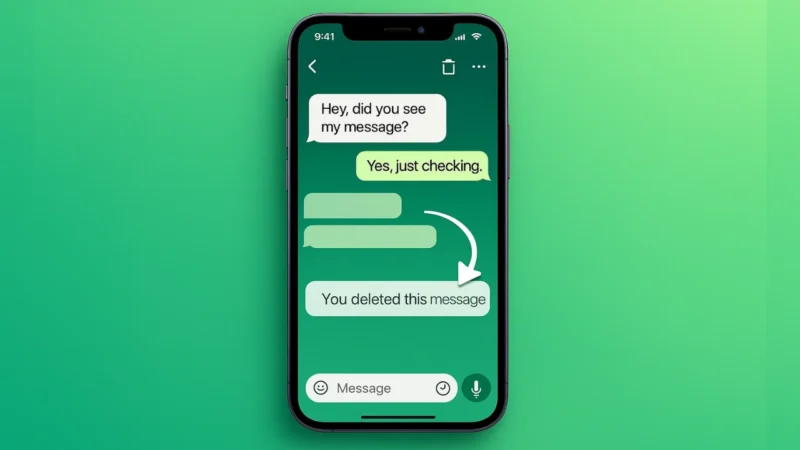
Everyone sends messages too fast sometimes. A typo, a wrong chat, or something you didn’t mean to say can happen to anyone. WhatsApp gives you two helpful options to fix your mistakes: you can delete a message or edit it.
This guide will show you both methods in a clear and friendly way.
Also read: How to Transfer WhatsApp Chats to Arattai Messenger Easily – Complete Guide
1. Why These Features Matter
Deleting and editing messages help you:
- Fix mistakes quickly
- Avoid confusion in group chats
- Correct wrong information
- Maintain clean and accurate conversations
These tools give you more control over your chats.
2. How to Delete a WhatsApp Message
Deleting a message is useful when you want it removed from the conversation completely.
WhatsApp gives you two choices:
- Delete for Everyone – removes the message from your chat and the other person’s chat
- Delete for Me – removes it only from your phone
Steps to delete a message:
- Open WhatsApp
- Go to the chat with the message
- Tap and hold the message
- Tap the trash icon
- Choose Delete for Everyone or Delete for Me
- Confirm your choice
After deleting for everyone, the chat will show: “This message was deleted”
Important notes:
- Delete for everyone works only for a limited time after sending
- If the other person saw the message earlier, deleting will not remove what they already read
- In groups, deleting works the same unless group settings limit permissions
Also read: How to Move All Facebook Photos to Google Drive – Simple and Complete Guide
3. How to Edit a WhatsApp Message
Editing is helpful when you want to correct a mistake without removing the message.
Steps to edit a message:
- Open the chat
- Tap and hold the message you want to edit
- Tap Edit
- Change the text
- Tap the checkmark or confirm
Your updated message will now show an “Edited” label.
Things to remember:
- Editing works only for text messages
- You can edit a message for a limited time after sending
- The other person will see that the message was edited
- Older WhatsApp versions may not support editing
4. Delete vs Edit – Which Should You Use
Here’s a simple comparison:
Use Delete When:
- You sent the message to the wrong person
- The message should not remain in chat
- You sent sensitive information
- The message has major mistakes
Use Edit When:
- You only need to fix a typo
- You want to correct a date, number, or link
- The message is already meaningful but needs small changes
- You want to avoid deleting the message completely
Also read: How to Use Android’s Auto-Reply Features for WhatsApp and SMS Without Any App
5. Extra Tips for Better Chat Control
- Keep WhatsApp updated for the latest delete and edit features
- Double-check before sending important messages
- In group chats, check if admins restrict message edits or deletions
- Consider using disappearing messages if you prefer automatic cleanup
- Remember that deleted messages leave a notice
Final Thoughts
Deleting and editing messages on WhatsApp are simple tools that make your chats cleaner and safer. Whether you want to remove a message entirely or just correct a small mistake, WhatsApp gives you the flexibility to manage your conversations easily.
Use these features wisely and you will always feel in control of your messages.
Also read: How to Use Android’s Screen Time Tools to Control Your Phone Addiction