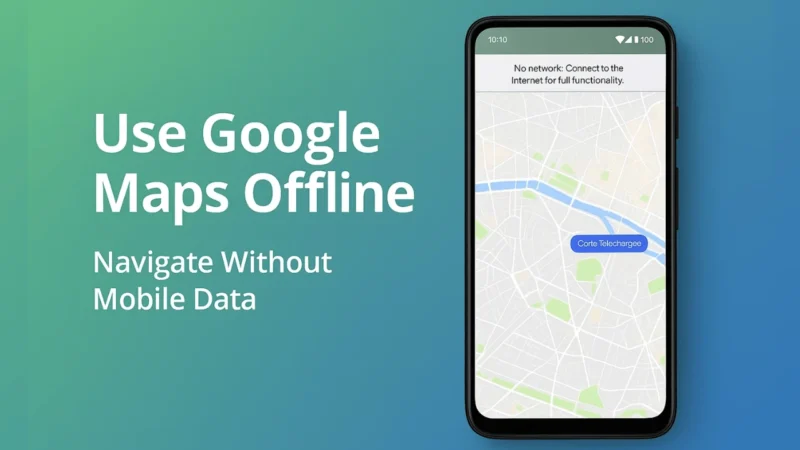
There are times when your mobile data is weak, expensive, or completely unavailable. Maybe you are traveling, maybe your network is acting weird, or maybe you want to save battery and data.
Whatever the situation is, Google Maps has a built in feature that most people ignore. You can download entire areas or cities and use Maps completely offline.
This means you can navigate, search places, check routes, and follow directions even with mobile data turned off.
Let’s understand it properly, step by step, without rushing into instructions.
Also read: How to Use Android’s Screen Time Tools to Control Your Phone Addiction
1. How Offline Maps Actually Work
Google Maps saves a portion of the map on your phone’s storage.
Once downloaded, you can:
- Navigate without internet
- See roads, locations, and turns
- Use turn by turn guidance
- Search places around you
- Get driving directions
It feels almost the same as online navigation.
The only major things that do not work offline are live traffic and alternate route suggestions based on real time conditions.
2. When Offline Maps Are Useful
This feature is extremely helpful when:
- You are traveling to a remote area
- Internet is slow or expensive
- Your data plan is low
- You want to save battery
- You want to avoid network issues
- You do not want Google Maps to eat your mobile data
Offline maps are basically your safety net during travel.
3. How to Download Offline Maps on Google Maps
Before downloading, make sure you are connected to Wi Fi so it does not use your mobile data.
To download an area:
- Open Google Maps
- Tap on your profile icon
- Select Offline maps
- Tap Select your own map
- Zoom in or out to choose the area you want
- Tap Download
Google Maps will save that area for offline use.
4. How to Update Offline Maps Automatically
Offline maps expire after a few weeks, but you can keep them updated automatically.
To enable auto updates:
- Go to Offline maps
- Tap Settings
- Turn on Auto update offline maps
This keeps your offline maps fresh without you doing anything manually.
5. How to Use Google Maps Offline for Real Navigation
Once the map is downloaded, you do not need mobile data at all.
Just do this:
- Turn off mobile data
- Keep GPS on
- Open Google Maps
- Set your destination
- Start navigation
Google Maps will guide you normally, even when your internet is off.
6. How Much Storage Offline Maps Take
It depends on how large the area is.
A small town may take 50 to 100 MB.
A full city can take 300 to 500 MB.
If you are low on storage, download only the areas you actually need.
7. Offline Maps Limitations You Should Know
Offline Maps are extremely useful, but there are a few limitations:
- No live traffic
- No fastest route updates
- No online search results outside the downloaded area
- Some businesses may not show updated timing or details
So keep these in mind while navigating.
Also read: How to Make Your Android Phone Feel Faster Without Resetting or Deleting Apps
Final Thoughts
Google Maps offline mode is one of the most underrated features on Android. It saves time, data, battery, and gives you reliable navigation even in poor network areas. If you download offline maps for your city or your travel destination, you will never get stuck because of bad network again.
Use this feature regularly and you will realize how powerful and convenient it truly is.