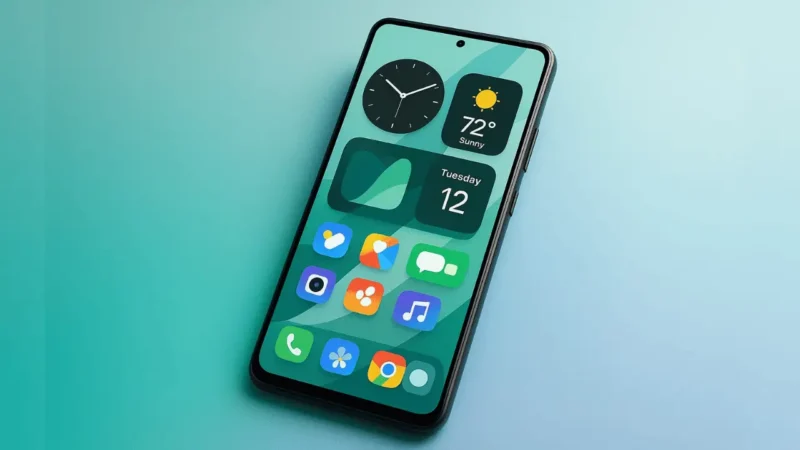
If you’re bored of your phone’s default look, don’t worry — Android gives you total freedom to make it your own.
Whether you want a clean setup or something bold and colorful, learning how to customize Android home screen can completely change how your phone feels.
The best part? You don’t need to install any sketchy apps. Everything can be done safely using built-in Android features and trusted tools.
So, grab your phone — let’s make your home screen look amazing! 💫
1. Start with a Fresh Wallpaper
The wallpaper is the first thing you see every time you unlock your phone — so let’s get that right.
Here’s how to do it:
- Long-press on your home screen.
- Tap Wallpaper & style.
- Choose from your gallery, live wallpapers, or built-in collections.
👉 Pro tip: Try using a dark wallpaper if you want icons to pop, or a light minimal design for a clean aesthetic.
Changing your wallpaper might sound simple, but it’s the foundation of how to customize Android home screen — it sets the whole tone for your setup.
2. Add Widgets for Function + Style
Widgets are mini tools that live right on your home screen — and they make your phone not just pretty, but smart.
To add one:
- Long-press the home screen.
- Tap Widgets.
- Pick something useful like Weather, Calendar, Clock, or Notes.
- Drag it where you want and resize it.
Widgets let you see info instantly — no need to open an app.
For example, you can check your battery, track habits, or see live weather updates directly on your screen.
If you really want to take your customization further, mix functional widgets (like Google Calendar) with aesthetic widgets (like digital clock or minimal weather).
That’s the secret to mastering how to customize Android home screen like a pro.
3. Customize App Icons
Now let’s talk icons — they make a huge difference in the overall look.
Android lets you change your app icons easily through launcher settings or built-in themes.
Here’s how:
- Long-press an app → tap Edit or Customize (depends on your phone).
- Choose a new icon from system options or your gallery.
- You can even download icon packs from the Play Store (like Whicons, CandyCons, or Delta).
Pro Tip: Keep a consistent color theme — for example, all white icons for a clean setup or pastel ones for a soft look.
Changing icons isn’t just cosmetic; it helps your home screen look organized and unique.
That’s another small win in learning how to customize Android home screen beautifully.
4. Organize with Folders & Layout
Now that your home screen looks good, let’s make it functional.
You can group similar apps together — like social, work, and tools — to avoid clutter.
- Drag one app over another to create a folder.
- Rename it (for example: “Work” or “Social”).
- Arrange them row by row or in minimalist patterns.
Keeping your layout tidy makes everything faster to find — plus, it gives that clean Android look everyone loves.
This simple organization trick is part of how to customize Android home screen that many people forget — but it’s what separates a messy setup from a professional one.
5. Try a Custom Launcher (Optional)
If you want full control over your layout and animations, you can try launchers like:
- Nova Launcher – best for flexibility.
- Niagara Launcher – minimal and fluid.
- Smart Launcher 6 – great for performance and design.
Launchers are completely safe when downloaded from the Play Store, and they give you advanced control over grids, gestures, and transitions.
It’s optional — but if you’re serious about mastering how to customize Android home screen, a launcher takes your setup to the next level.
6. Experiment with Themes & Icon Shapes
Most Android phones (especially Samsung, OnePlus, Pixel, and Xiaomi) include built-in theme stores.
Here you can change:
- System colors
- Icon shapes
- Accent tones
Try switching to a Material You theme — it automatically matches your wallpaper colors with your UI.
It’s the easiest way to keep your home screen modern, consistent, and stylish.
7. Keep It Minimal and Balanced
A pro-looking Android setup isn’t about filling every inch of your screen — it’s about balance.
Leave some breathing space, use clean wallpapers, and limit yourself to a few widgets.
Remember, the goal of how to customize Android home screen is to make your phone feel like you — not someone else’s template.
Conclusion
So, that’s everything you need to know about how to customize Android home screen (widgets, icons, and wallpapers).
Whether you prefer a simple layout or a creative, colorful setup — Android gives you the freedom to design your phone your way.
Just play around, experiment with different combinations, and have fun with it!
After all, your home screen should feel personal — not standard.