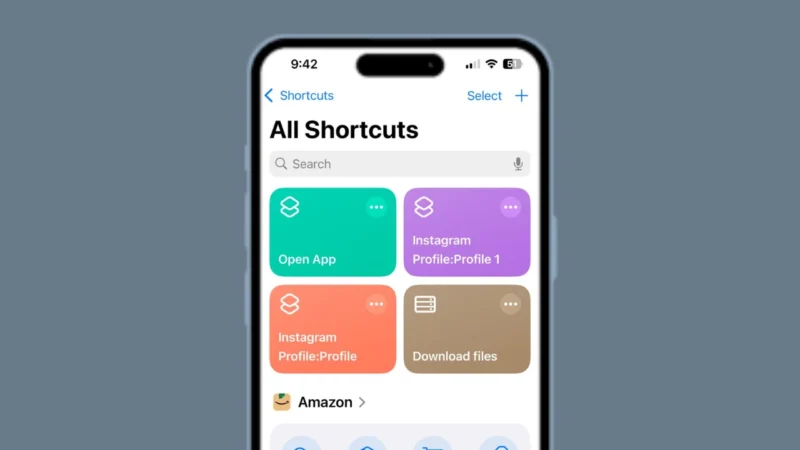
Doing the same tasks on your iPhone every day can feel repetitive. Turning on Wi-Fi at home, switching to silent mode at night, opening apps in the morning, or sending quick messages are small things but they add up. This is where iOS Shortcuts automation becomes extremely useful.
Apple’s Shortcuts app lets you automate daily actions so your iPhone works for you automatically, without manual effort.
In this guide, you will learn what iOS automation is, how it works, and how to set up useful daily task automations step by step.
Also read: Best Ways to Transfer Data from Android to iPhone Without Losing Anything
What Is iOS Shortcuts Automation
iOS Shortcuts is an official Apple app that allows users to create actions and automate tasks on iPhone and iPad.
Automation in Shortcuts means your iPhone performs actions automatically when a specific condition is met, such as:
- A specific time of day
- Connecting to Wi-Fi or Bluetooth
- Opening or closing an app
- Battery level reaching a certain percentage
- Arriving at or leaving a location
Once set, these automations run in the background without needing extra apps.
Why Use Automation for Daily Tasks
Using automation helps in many practical ways:
- Saves time by reducing repetitive work
- Improves focus by minimizing manual phone usage
- Keeps settings consistent every day
- Makes your iPhone smarter and more personal
Everything works using Apple’s built-in system, so it is safe and reliable.
Also read: How to Change Typing Font Style on WhatsApp (Easy Methods)
How to Open Automation in iOS Shortcuts
Follow these steps to access automation:
- Open the Shortcuts app on your iPhone
- Tap the Automation tab at the bottom
- Tap Create Personal Automation
- Choose a trigger for your automation
Now you are ready to create your first automated task.
Popular iOS Automation Ideas for Daily Use
Morning Routine Automation
You can automate actions when your day starts.
Example actions:
- Turn off Low Power Mode
- Turn on Wi-Fi and Mobile Data
- Open apps like Calendar or Weather
- Set volume to a comfortable level
Trigger: Time of Day
Night Routine Automation
Make your phone adjust automatically at night.
Example actions:
- Turn on Silent Mode
- Enable Do Not Disturb
- Reduce screen brightness
- Turn off Wi-Fi or Mobile Data
Trigger: Time of Day
Battery Level Automation
This is one of the most useful automations.
Examples:
- Turn on Low Power Mode at 30 percent
- Turn off Low Power Mode at 80 percent
Trigger: Battery Level
App Based Automation
You can automate actions when opening or closing apps.
Examples:
- Turn on Do Not Disturb when opening Instagram
- Reduce brightness when opening YouTube
- Turn on Wi-Fi when opening Safari
Trigger: App
Location Based Automation
Your iPhone can react based on where you are.
Examples:
- Turn on Wi-Fi when arriving home
- Turn on Silent Mode when reaching office
- Open Maps when leaving home
Trigger: Location
Note: Location automation may ask for confirmation for privacy reasons.
Also read: Use One WhatsApp Account on Two Phones Officially
How to Create an Automation Step by Step
Here is a simple example of setting Silent Mode automatically at night:
- Open Shortcuts
- Go to Automation
- Tap Create Personal Automation
- Select Time of Day
- Choose the time and repeat daily
- Tap Next
- Add action and search for Set Silent Mode
- Choose On
- Tap Next
- Turn off Ask Before Running
- Confirm
Your automation is now active.
Permissions and Privacy in iOS Automation
Apple takes privacy seriously. Some automations may require:
- Location access
- Notification permission
- Confirmation before running
You can manage permissions from Settings > Privacy & Security.
No automation runs without your approval.
Also read: How to Create Filters in Gmail to Organize Your Inbox
Can Automation Run Without Internet
Yes, many automations work offline, such as:
- Silent mode
- Brightness
- Low Power Mode
- App opening actions
Online actions like sending messages or fetching data may require internet access.
Common Automation Mistakes to Avoid
- Creating too many automations at once
- Forgetting to disable Ask Before Running
- Using conflicting automations at the same time
- Ignoring battery impact from excessive triggers
Keep automations simple and useful.
Also read: How to Share Your WhatsApp QR Code – Simple and Complete Guide
Final Thoughts
iOS Shortcuts automation is one of the most powerful yet underused features on iPhone. Once set up properly, it saves time, reduces distractions, and makes daily phone usage smoother.
You do not need any third-party apps or risky tricks. Everything works using Apple’s official system, making it safe, private, and reliable for everyday use.
Start with one or two automations, test them, and gradually build a smart routine that fits your daily life.