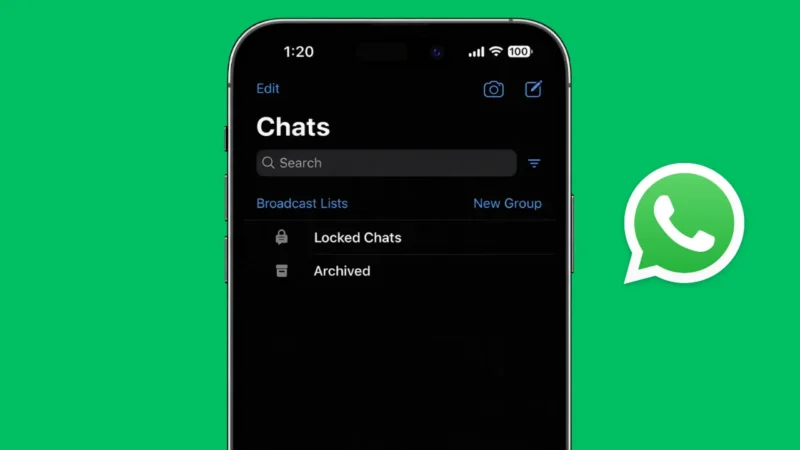
If you share your iPhone with family or friends, or you simply want extra privacy, locking specific chats in WhatsApp is a smart move. WhatsApp on iPhone includes a built-in chat lock feature that lets you protect both personal and group conversations using Face ID, Touch ID, or your device passcode.
This guide explains how chat lock works, how to enable it for individual and group chats, and what changes after you turn it on.
Also read: How to Hide Online Status on WhatsApp: Easy Settings You Should Know
What Is Chat Lock in WhatsApp
Chat Lock is a privacy feature that hides selected conversations behind biometric authentication. Once a chat is locked:
- Messages are moved to a separate Locked Chats section
- Notifications hide message previews
- Opening the chat requires Face ID, Touch ID, or passcode
The feature works for one-to-one chats and group chats.
Requirements Before You Start
Make sure you have:
- An iPhone running a recent iOS version
- The latest version of WhatsApp installed
- Face ID, Touch ID, or passcode enabled on your iPhone
Also read: How to Delete WhatsApp Call History on Android and iOS Devices
How to Lock an Individual Chat in WhatsApp on iPhone
Follow these steps to lock a personal conversation:
- Open WhatsApp on your iPhone
- Open the chat you want to lock
- Tap the contact’s name at the top
- Tap Chat Lock
- Turn on Lock This Chat with Face ID or Touch ID
- Confirm using Face ID, Touch ID, or passcode
The chat is now locked and moved out of your main chat list.
How to Lock a Group Chat in WhatsApp on iPhone
You can lock group chats the same way.
- Open the group chat
- Tap the group name at the top
- Select Chat Lock
- Enable Lock This Chat with Face ID
- Confirm authentication
The entire group conversation becomes private, even if new messages arrive.
Also read: How to Edit Videos in WhatsApp on iPhone and Android
Where Locked Chats Are Stored
Locked chats are not deleted. They are stored in a separate section:
- Scroll to the top of your chat list
- Tap Locked Chats
- Authenticate with Face ID or Touch ID
Only after verification can you see the locked conversations.
What Happens to Notifications for Locked Chats
When a chat is locked:
- Notifications no longer show message content
- You may see a generic alert like “New message”
- Message previews stay hidden
This prevents sensitive information from appearing on your lock screen.
Also read: How to Stop WhatsApp Calls From a Specific Person Without Blocking
How to Unlock or Remove Chat Lock
If you no longer need the lock:
- Open Locked Chats
- Open the locked conversation
- Tap the contact or group name
- Tap Chat Lock
- Turn off the lock option
- Confirm authentication
The chat returns to your regular chat list.
Things to Know About WhatsApp Chat Lock
- Locked chats are not hidden in backups
- Chat lock applies only on that device
- Deleting WhatsApp removes local locked chats
- You can lock unlimited chats
- Archived chats can also be locked
Also read: How to Make Stickers for WhatsApp Without App on Android and iPhone
Tips for Better Privacy
- Enable WhatsApp screen lock in app settings
- Hide message previews from iPhone notifications
- Use Face ID instead of passcode for faster access
- Lock sensitive group chats you do not want others to read
Final Thoughts
Chat Lock on WhatsApp for iPhone is an easy and effective way to protect both personal and group conversations. With Face ID or Touch ID, your private chats stay private without affecting your daily messaging. If privacy matters to you, locking important chats is a feature worth using.
Also read: Stop WhatsApp Media from Automatically Saving to Your Phone Gallery