Privacy is important, especially when your WhatsApp chats contain personal messages, photos, or work conversations. If someone gets access to your phone, they can easily open WhatsApp unless it is protected. That is why WhatsApp offers built-in biometric locking using Face ID or fingerprint on both iPhone and Android.
This guide explains how to lock WhatsApp using official methods and what you should know before enabling it.
Also read: How to Clear WhatsApp Cache on iPhone and Android
What Is WhatsApp App Lock
WhatsApp app lock adds an extra security layer that requires biometric authentication before opening the app. Even if your phone is unlocked, WhatsApp will still ask for Face ID or fingerprint.
This feature works separately from your phone lock and does not affect calls, notifications, or message delivery.
How to Lock WhatsApp With Face ID on iPhone
iPhone users can use Face ID or Touch ID to protect WhatsApp.
Steps to Enable WhatsApp Face ID Lock on iPhone
- Open WhatsApp
- Tap Settings
- Go to Privacy
- Tap App Lock
- Turn on Require Face ID or Require Touch ID
Once enabled, WhatsApp will ask for Face ID every time you open the app.
Choose Auto-Lock Timing on iPhone
You can select when WhatsApp should lock itself:
- Immediately
- After 1 minute
- After 15 minutes
- After 1 hour
Choose the option that best matches your usage.
Also read: How to Create WhatsApp Contact Shortcuts on iPhone
How to Lock WhatsApp With Fingerprint on Android
Android devices use fingerprint authentication for WhatsApp locking.
Steps to Enable Fingerprint Lock on Android
- Open WhatsApp
- Tap the three-dot menu
- Go to Settings
- Tap Privacy
- Select Fingerprint lock
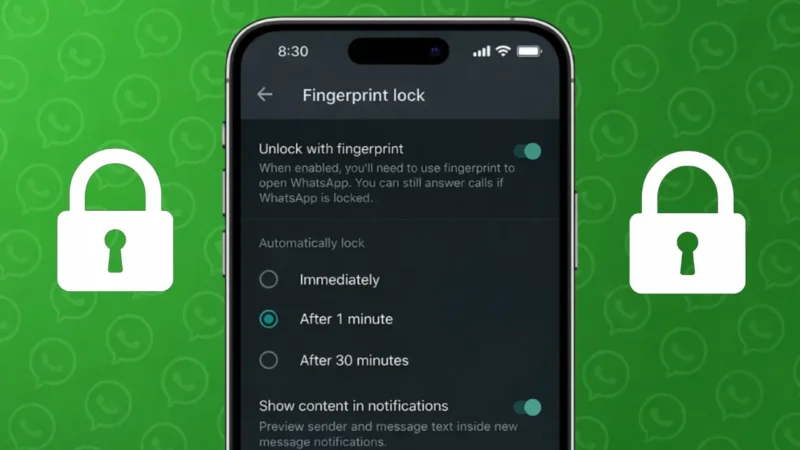
- Turn on Unlock with fingerprint
After setup, WhatsApp will require your fingerprint before opening.
Auto-Lock Options on Android
You can choose how quickly WhatsApp locks:
- Immediately
- After 1 minute
- After 30 minutes
You can also decide whether message content should be visible in notifications.
Does App Lock Affect Calls or Notifications
No. WhatsApp app lock does not block:
- Incoming calls
- Message delivery
- Notification alerts
You can still see who messaged you, but opening the app requires biometric verification.
Also read: How to Lock Individual and Group Chats in WhatsApp on iPhone
Can You Use Both Phone Lock and WhatsApp Lock
Yes. Using both together provides better security. Even if someone unlocks your phone, WhatsApp remains protected.
This is recommended for users who share their phone or use WhatsApp for work.
What Happens If Face ID or Fingerprint Fails
If biometric authentication fails multiple times:
- iPhone will ask for device passcode
- Android may request phone unlock
This ensures you are never locked out of your account.
Also read: How to Hide Online Status on WhatsApp: Easy Settings You Should Know
Important Things to Know
- App lock does not encrypt chats
- Backups are not affected
- You must re-enable app lock after reinstalling WhatsApp
- App lock settings are device-specific
Why You Should Lock WhatsApp
People use WhatsApp lock to:
- Protect private conversations
- Keep work chats secure
- Prevent unauthorized access
- Add an extra privacy layer
It is especially useful if you leave your phone unattended.
Also read: How to Delete WhatsApp Call History on Android and iOS Devices
Final Thoughts
Locking WhatsApp with Face ID or fingerprint is one of the easiest ways to protect your chats. WhatsApp provides this feature officially, so there is no need for third-party apps. With just a few taps, you can secure your messages on both iPhone and Android and enjoy peace of mind knowing your conversations stay private.
If privacy matters to you, enabling WhatsApp app lock is a smart decision.