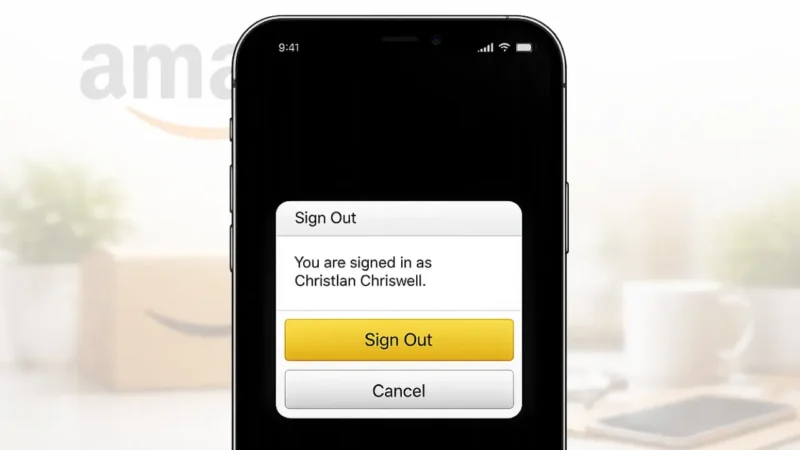
If you use Amazon regularly, there may be times when you want to log out of your account. This is common when you are using a shared phone, switching accounts, or troubleshooting app issues. Amazon allows you to log out easily on both the mobile app and the website.
This guide explains how to log out of the Amazon app on Android and iPhone, as well as how to sign out from Amazon on a desktop or mobile browser.
Also read: How to Delete WhatsApp Call History on Android and iOS Devices
Why You Might Want to Log Out of Amazon
People usually log out of Amazon for reasons like:
- Using a shared device
- Protecting account privacy
- Switching to a different Amazon account
- Fixing login or syncing issues
- Selling or giving away a phone
Logging out does not delete your account or order history.
How to Log Out of Amazon App on Android and iPhone
The steps are the same on both Android and iOS.
Steps to Sign Out From Amazon App
- Open the Amazon app
- Tap the menu icon (three horizontal lines)
- Scroll down and tap Settings
- Select Sign Out
- Confirm when prompted
Once you sign out, the app will return to the login screen.
Also read: How to Unsync Contacts From Instagram (Step-by-Step Guide)
How to Log Out of Amazon Website on Desktop or Mobile Browser
If you are using Amazon in a browser, you can log out in seconds.
Steps to Sign Out From Amazon Website
- Open Amazon in your browser
- Move your cursor over Account & Lists
- Click Sign Out
On mobile browsers, the sign-out option is usually found inside the menu under account settings.
How to Log Out of Amazon on All Devices Remotely
If you suspect someone else is using your account, Amazon gives you a way to sign out from all devices.
- Log in to Amazon
- Go to Account
- Open Manage Your Content and Devices
- Go to the Devices tab
- Remove unknown or unused devices
- Change your password for extra security
This helps protect your account from unauthorized access.
Also read: How to Use Message Reactions in Telegram
What Happens After You Log Out
After logging out:
- Your account remains active
- Orders and saved addresses stay safe
- You will need to enter your password again to log in
- The app does not place any orders automatically
Nothing is deleted unless you choose to remove account data.
Common Issues While Logging Out
If you do not see the sign-out option:
- Update the Amazon app
- Restart the app
- Check if you are using a child or restricted profile
- Clear app cache if needed
Most issues are fixed by updating the app.
Also read: How to Change or Remove Your Last Name on Facebook
Final Thoughts
Logging out of Amazon on the app or website is simple and safe. Whether you are protecting your privacy or switching accounts, Amazon provides official options to sign out in just a few steps. If you are using a shared or public device, always remember to log out after finishing your session.