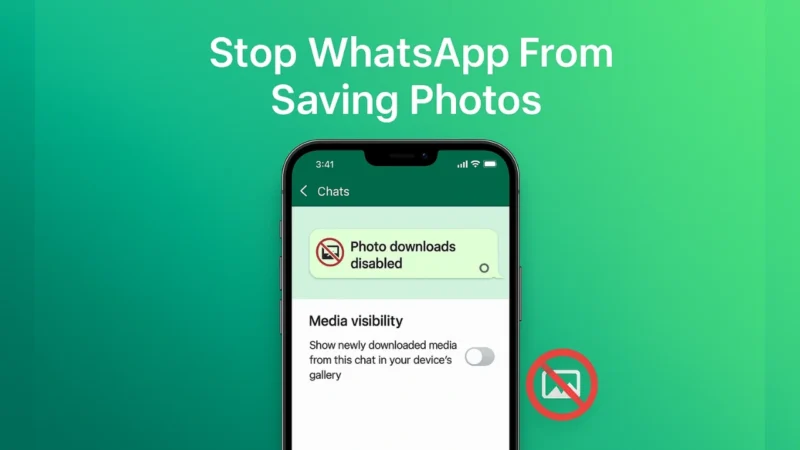
If your phone’s gallery is filled with random WhatsApp photos you never asked to save, you’re not alone. By default WhatsApp downloads media automatically, which quickly fills your storage and makes your gallery messy.
The good news is that you can turn this feature off and take full control of what gets saved.
Here is a clean and easy guide to stop WhatsApp from saving photos on your phone.
Also read: How to Delete and Edit Messages on WhatsApp
1. Why You Should Turn Off Auto Saving
Here are the most common reasons people disable automatic saving:
- Your gallery gets cluttered with screenshots, memes and forwarded photos
- Storage fills up faster than expected
- You want more privacy and control over what appears in your camera roll
- You prefer saving only the photos that matter
When you turn auto save off, WhatsApp media will stay inside the app unless you choose to save it manually.
2. Turn Off Auto Saving for All Chats
If you want WhatsApp to stop saving photos from every chat on your phone, follow these steps based on your device.
On Android:
- Open WhatsApp
- Tap the three dot menu
- Go to Settings
- Tap Chats
- Turn off Media visibility
This stops WhatsApp images from appearing in your phone gallery.
Now disable auto download:
- Go to Settings
- Tap Storage and data
- Under these three sections adjust downloads:
- When using mobile data
- When on Wi-Fi
- When roaming
- Uncheck Photos
This prevents photos from downloading automatically in the background.
On iPhone:
- Open WhatsApp
- Tap Settings
- Tap Chats
- Turn off Save to Camera Roll
This stops WhatsApp from adding photos to your gallery automatically.
Also read: How to Transfer WhatsApp Chats to Arattai Messenger Easily – Complete Guide
3. Stop Auto Saving for Specific Chats or Groups
If you only want to control one chat, not the whole app, this option is perfect.
For Android:
- Open the chat
- Tap the contact or group name
- Tap Media visibility
- Choose No
For iPhone:
- Open the chat
- Tap the contact or group name
- Tap Save to Camera Roll
- Choose Never
Now only that chat will be prevented from saving photos.
4. Save Photos Manually When You Want To
Once auto saving is turned off, you can still save important photos manually:
- Tap the photo
- Tap the three dots (Android) or share icon (iPhone)
- Select Save
This gives you full control without blocking everything.
Also read: How to Move All Facebook Photos to Google Drive – Simple and Complete Guide
5. Bonus Tips to Manage WhatsApp Storage
If your WhatsApp media folder is still heavy, use these tips:
- Open Settings → Storage and data → Manage storage
- Delete large media files
- Use Telegram or Google Photos for temporary storage
- Avoid downloading forwarded photos unless needed
These small habits keep your phone cleaner.
Final Thoughts
WhatsApp tries to save everything by default, but you don’t have to let it fill your gallery. Turning off auto saving gives you privacy, cleaner storage and more control. Whether you disable it for all chats or only specific ones, your phone will immediately feel more organised.
Also read: How to Set Up Android Face Recognition – A Step-by-Step Guide