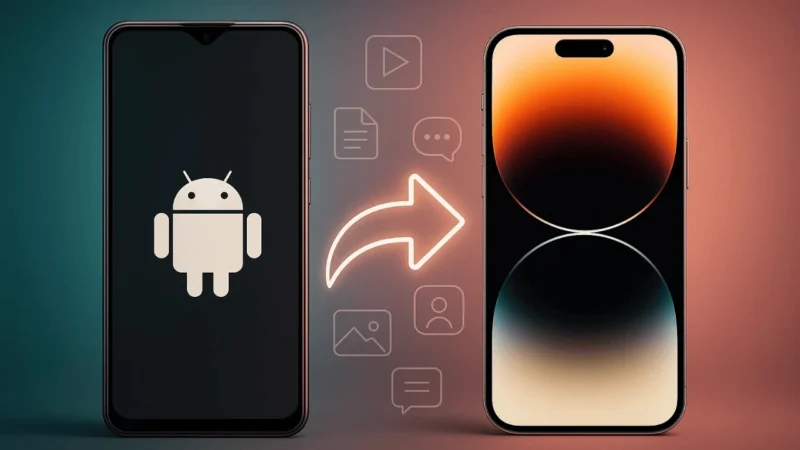
If you are switching from Android to iPhone, the first question that comes to mind is how to move your data safely. Your photos, contacts, chats, videos, and documents are important, and you do not want to leave anything behind. The good news is that Apple and Google both provide simple tools that make the transfer process smooth and secure.
This guide explains the best methods to move your data from Android to iPhone step by step.
Also read: How to Backup and Restore WhatsApp Chats Properly
1. Move to iOS App: The Official and Easiest Method
Apple created the Move to iOS app specifically for Android users who are shifting to an iPhone. It transfers most of your essential data in one go.
What can be transferred
- Contacts
- Message history
- Photos and videos
- Calendar events
- Google accounts
- WhatsApp chats
- App data supported by iOS
How to use it
- Turn on your new iPhone and start the setup process.
- Select the option called Move Data from Android.
- Install Move to iOS from the Google Play Store on your Android phone.
- Open the app and grant required permissions.
- Enter the code shown on your iPhone.
- Choose the data you want to copy.
- Wait for the transfer to complete.
Keep both phones close together during the transfer and connected to power for smooth performance.
Also read: Use One WhatsApp Account on Two Phones Officially
2. Transfer WhatsApp Chats Easily
WhatsApp now offers an official method to move chats from Android to iPhone.
Steps
- Update WhatsApp on both phones.
- Open WhatsApp on Android.
- Go to Settings > Chats > Transfer Chats to iPhone.
- Scan the QR code on your iPhone.
- Wait while WhatsApp moves your messages and media.
This method ensures that your chat history appears exactly as it was on your Android device.
3. Transfer Photos and Videos Using Google Photos
If your gallery is already synced to Google Photos, you can access everything instantly on your iPhone.
Steps
- Open Google Photos on Android and ensure backup is turned on.
- Install Google Photos on your iPhone.
- Log in with the same Google account.
- All your images and videos will appear automatically.
This method is great for people who have limited storage on their iPhone.
Also read: How to Check If Your Gmail Account Is Hacked and How to Fix It
4. Move Documents Through Google Drive or Dropbox
For documents like PDFs, notes, and downloaded files, cloud storage is the easiest option.
How
- Upload your files from Android to Google Drive or Dropbox.
- Install the same app on your iPhone.
- Log in and download your files.
No cables required, and everything stays organized.
5. Transfer Contacts Using Your Google Account
Many users prefer this method because it works even after setup is complete.
Steps
- On Android, sync your contacts with your Google account.
- On iPhone, go to Settings > Mail > Accounts > Add Account.
- Sign in with your Google account.
- Turn on the Contacts toggle.
Your contact list will appear on your iPhone within seconds.
Also read: How to Set Up Two-Factor Authentication on WhatsApp
6. Move Music to iPhone
Music files do not transfer automatically, but you can move them manually.
Steps
- Connect your Android phone to your computer.
- Copy your Music folder.
- Open Finder or iTunes with your iPhone connected.
- Drag your music files into the device music section.
Your songs will sync to the iPhone’s Music app.
7. Third Party Tools (Optional)
If you want a more advanced transfer solution, some paid tools offer deeper data migration, including app data and larger file batches. Popular names include:
- MobileTrans
- AnyTrans
- iCareFone
These tools may help if the official methods do not transfer everything you need.
Also read: How to Sync iCloud Photos with Google Photos – Simple Guide
Final Thoughts
Moving your data from an Android phone to an iPhone is much easier than it used to be. The Move to iOS app handles most tasks, while tools like Google Photos, Google Drive, and direct WhatsApp transfer fill in the gaps. Whether you are transferring for the first time or upgrading your phone, following the steps above ensures your photos, contacts, and chats stay safe throughout the process.