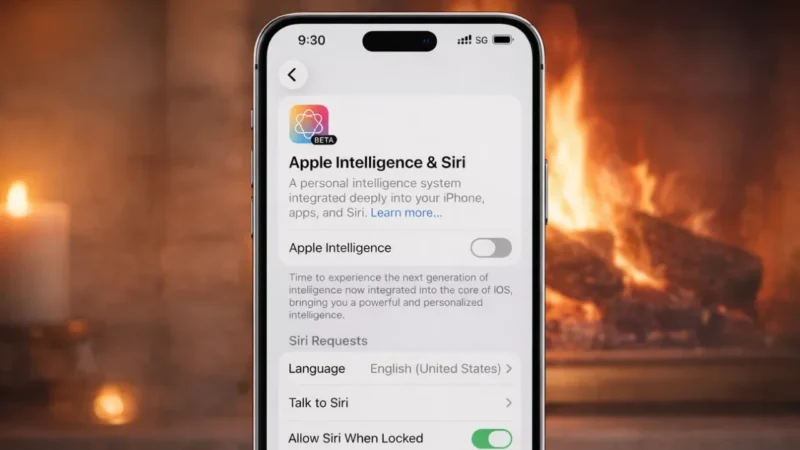
Apple has introduced Apple Intelligence, a set of AI-powered features designed to improve writing, notifications, and overall user experience. But not everyone finds it useful. Some users prefer a simpler interface, better privacy control, or improved battery performance.
If you’re one of them, turning it off is completely possible—and pretty easy.
Also read: How to Set Up Automation in iOS Shortcuts for Daily Tasks
What Is Apple Intelligence
Apple Intelligence is Apple’s built-in AI system that works across apps like:
- Messages
- Notes
- Safari
- Siri
It helps with tasks like writing suggestions, summaries, smart replies, and more.
Why You Might Want to Turn It Off
Here are some practical reasons:
- You don’t use AI features
- Want better privacy control
- Reduce background processing
- Improve device performance
- Avoid unnecessary suggestions
If you relate to any of these, disabling it makes sense.
How to Turn Off Apple Intelligence on iPhone and iPad
Follow these steps:
Step 1: Open Settings
Go to your device’s Settings app.
Step 2: Find Apple Intelligence
Scroll down and tap Apple Intelligence & Siri (name may vary slightly).
Step 3: Turn Off Apple Intelligence
Toggle off the option related to Apple Intelligence features.
Disable Specific Features (Optional)
If you don’t want to turn everything off, you can disable selected features:
Writing Tools
- Go to Settings → Apple Intelligence
- Turn off writing suggestions
Smart Replies
- Disable auto-replies in Messages or Mail
AI Summaries
- Turn off notification summaries
This gives you more control instead of disabling everything.
How to Turn Off Apple Intelligence on Mac
Step 1: Open System Settings
Click on the Apple menu → System Settings
Step 2: Go to Apple Intelligence
Find the AI settings section.
Step 3: Disable Features
Turn off Apple Intelligence or specific tools like suggestions and summaries.
Will Turning It Off Affect Your Device
No major impact.
- Your apps will continue working normally
- Only AI-based suggestions and automation will stop
- No data or files will be deleted
You can also turn it back on anytime.
Things to Keep in Mind
- Some features may still work partially if tied to Siri
- Future updates may change settings location
- Not all devices support Apple Intelligence fully
Also read: How to Sync iCloud Photos with Google Photos – Simple Guide
Final Thoughts
Apple Intelligence can be useful, but it’s not necessary for everyone. If you prefer a clean, distraction-free experience or want more control over your device, turning it off is a smart choice.
The best part is—you can always enable it again whenever you need it.