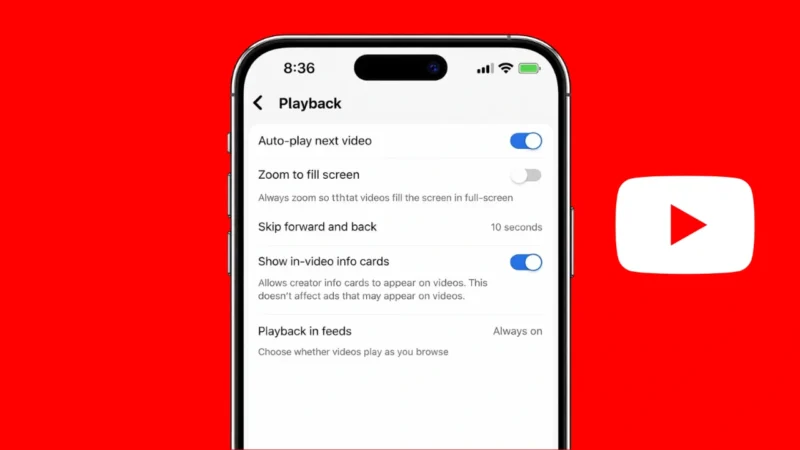
Autoplay on YouTube automatically plays the next video after the current one ends. While this feature can be useful, many users prefer to turn it off to save data, avoid distractions, or control what they watch next.
In this guide, you will learn how to turn off autoplay on YouTube across mobile, desktop, and smart TV devices.
Also read: 3 Ways to Know How Much Time You Spend on YouTube
What Is YouTube Autoplay
Autoplay is a feature that plays the next recommended video automatically. It works based on your watch history and recommendations.
When enabled:
- Videos continue playing without interruption
- You may end up watching more than planned
- Data usage can increase, especially on mobile
How to Turn Off Autoplay on YouTube Mobile (Android and iPhone)
Follow these steps:
Method 1: From Video Screen
- Open the YouTube app
- Play any video
- Look for the Autoplay toggle near the top or bottom of the screen
- Turn it OFF
Method 2: From Settings
- Open YouTube app
- Tap your profile icon
- Go to Settings
- Tap Autoplay
- Turn off Autoplay next video
This will stop videos from automatically playing on your phone.
How to Turn Off Autoplay on YouTube PC (Browser)
If you are using YouTube on a laptop or desktop:
- Open YouTube in your browser
- Play any video
- On the right side, find the Autoplay toggle above suggested videos
- Turn it OFF
Once disabled, YouTube will stop playing the next video automatically.
How to Turn Off Autoplay on YouTube TV (Smart TV or Android TV)
Steps may vary slightly depending on your TV, but generally:
- Open the YouTube app on your TV
- Play any video
- Navigate to the Autoplay option on the screen
- Turn it OFF
Some TVs also allow you to disable autoplay from settings:
- Go to Settings
- Find Autoplay
- Disable it
Extra Tip: Turn Off Autoplay on Home Feed (Mobile)
YouTube also has autoplay previews on the home screen.
To disable it:
- Open YouTube app
- Go to Settings
- Tap General
- Select Playback in feeds
- Choose Off
This stops videos from playing automatically while scrolling.
Why You Should Turn Off Autoplay
Turning off autoplay can help you:
- Save mobile data
- Avoid unwanted content
- Reduce screen time
- Stay focused
It gives you full control over what you watch next.
Also read: 3 Ways to See Liked YouTube Videos on PC and Mobile
Final Thoughts
Turning off autoplay on YouTube is simple and works slightly differently depending on your device. Whether you are using a phone, PC, or TV, you can disable it in just a few steps.
If you want better control over your viewing experience and avoid endless video playback, switching off autoplay is a smart choice.