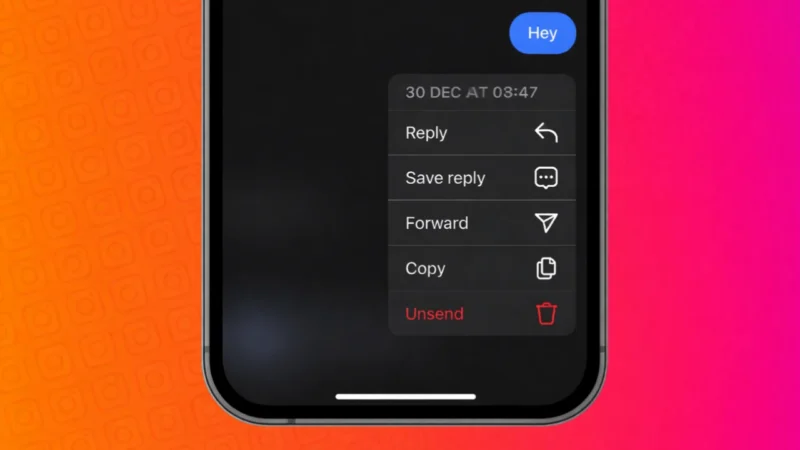
Instagram messages are quick and convenient, but sometimes we send something by mistake. It could be a wrong text, an unfinished thought, or a message sent to the wrong person. The good news is that Instagram allows you to unsend or delete messages easily. In this guide, you will learn how message deletion works on Instagram, what options you have, and what actually happens after you remove a message.
Also read: What WhatsApp Call Statuses Really Mean and Why You See Them
Understanding Message Deletion on Instagram
Instagram offers two different actions related to messages:
- Unsend a message
- Delete an entire chat from your inbox
Both actions behave differently, so it is important to understand when to use which option.
How to Unsend a Message on Instagram
Unsending a message removes it from both sides. Once unsent, the message disappears from your chat as well as the other person’s chat.
Steps to Unsend a Message on Instagram
- Open the Instagram app on your phone
- Tap the Messages icon in the top right corner
- Open the conversation where the message was sent
- Press and hold the message you want to remove
- Tap Unsend
- Confirm the action
The message will be removed instantly and cannot be recovered.
Important Things to Know About Unsending
- The other person will not see the message again
- If they already read it, unsending will not undo that
- Instagram does not notify the other person when you unsend a message
- You can unsend text messages, photos, videos, and voice notes
Also read: How to Make Stickers for WhatsApp Without App on Android and iPhone
How to Delete an Instagram Chat from Your Inbox
Deleting a chat only removes it from your side. The other person will still see the conversation and messages.
Steps to Delete a Chat
- Go to your Instagram Messages
- Find the chat you want to remove
- On Android: Tap and hold the chat
- On iPhone: Swipe left on the chat
- Tap Delete
This action clears the conversation from your inbox only.
Difference Between Unsend and Delete
| Action | Removes from your chat | Removes from other user |
|---|---|---|
| Unsend message | Yes | Yes |
| Delete chat | Yes | No |
If you want a message gone for everyone, always use Unsend.
Also read: Chrome Using Too Much RAM? Simple Ways to Fix High Memory Usage
Can You Unsend Messages After a Long Time?
Yes. Instagram allows you to unsend messages at any time. There is no time limit. Even messages sent weeks or months ago can be unsent.
What Happens to Notifications?
If the other person already received a notification before you unsent the message, the notification might still show part of the message. However, the full message will not be visible inside the chat.
Can You Recover an Unsent Message?
No. Once a message is unsent, it is permanently removed. Instagram does not provide any option to restore it.
Tips to Avoid Sending Messages by Mistake
- Double-check the chat before sending
- Use draft typing carefully
- Avoid sending messages quickly in similar-looking chats
- Review voice messages before sending
Also read: Stop WhatsApp Media from Automatically Saving to Your Phone Gallery
Final Thoughts
Instagram’s unsend feature is very helpful for correcting mistakes and maintaining privacy. Whether you want to remove a single message or clear an entire chat, Instagram gives you simple tools to manage your conversations. Just remember that unsent messages cannot be recovered, so use the feature carefully.