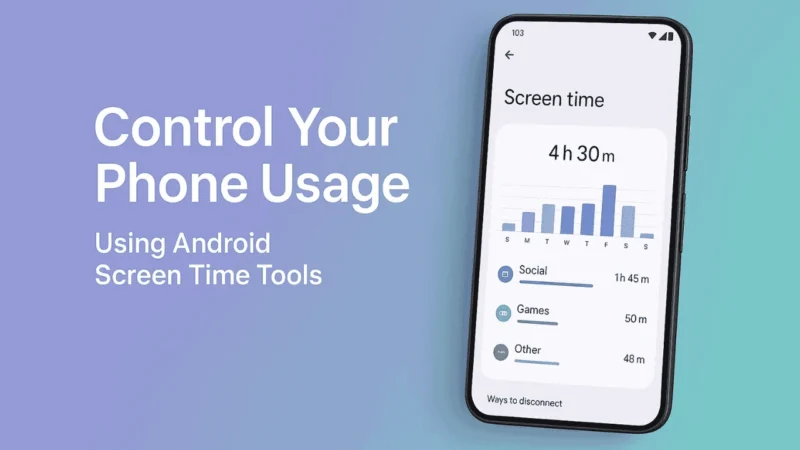
Let’s be honest. Most people don’t even realize how much time they lose scrolling on their phones. One moment you open Instagram “for two minutes” and suddenly half an hour disappears.
If you feel your phone is taking too much of your time, Android already has built in tools that can help you take control. No extra apps needed. No complicated settings.
Let’s break it down like a friend guiding you step by step.
Also read: How to Make Your Android Phone Feel Faster Without Resetting or Deleting Apps
1. Check Your Daily Screen Time
Before you fix anything, you need to know the reality.
Android tells you exactly how much time you spend on your phone and which apps take most of your day.
Go to:
- Settings
- Digital Wellbeing and Parental Controls
- Dashboard
Here you will see:
- Total screen time
- Number of unlocks
- Notifications you received
- Time spent on each app
This gives you a clear picture of your habits.
2. Set Daily App Timers
If you know you get stuck on Instagram, YouTube, or games, this feature helps a lot.
App timers lock the app automatically when your daily limit is over.
This is one of the strongest tools to break phone addiction.
To set it:
- Go to Digital Wellbeing
- Open Dashboard
- Tap the app you want to limit
- Select App Timer
- Choose your daily time limit
When time is up, the app will stop until the next day.
3. Use Focus Mode to Block Distractions
Focus Mode is perfect when you want to work, study, or just stay away from distracting apps.
You can choose which apps should be paused during this mode.
Once enabled, those apps become unavailable until you turn off Focus Mode.
To use it:
- Go to Digital Wellbeing
- Tap Focus Mode
- Select distracting apps
- Start the mode
It gives you a clean, quiet phone experience.
4. Enable Bedtime Mode for Better Sleep
Most people keep scrolling at night without realizing it.
Bedtime Mode helps you wind down.
When turned on, your screen becomes gray, notifications stop, and the phone becomes less appealing to use.
Steps:
- Open Digital Wellbeing
- Tap Bedtime Mode
- Choose your schedule
- Turn on grayscale and Do Not Disturb
This makes late night scrolling almost impossible.
5. Turn Off Unnecessary Notifications
Notifications are the biggest trigger for phone addiction.
Every ping makes you check your phone even when you don’t need to.
Android lets you control which apps can send notifications.
To manage them:
- Go to Settings
- Notifications
- Turn off alerts for apps you don’t want constantly buzzing
Less noise means less urge to use your phone.
6. Use Do Not Disturb During Work Hours
If you really want uninterrupted time, Do Not Disturb helps you stay focused.
It stops calls, messages, and notifications except from important contacts.
How to set it:
- Go to Settings
- Sound
- Do Not Disturb
- Customize allowed calls and apps
Turn it on during work, workouts, or study sessions.
7. Track Your Progress Weekly
Android shows weekly insights about your phone usage.
This helps you see improvements and stay consistent.
Open Digital Wellbeing every week and check:
- Whether your usage has gone up or down
- Which days were better
- Which apps consume most of your attention
Small improvements every week lead to long term control.
Also read: How to Use Android’s Safety & Emergency Features During Real-Life
Final Thoughts
Phone addiction is not always about discipline. Sometimes it is simply about controlling triggers and reducing distractions. Android’s built in screen time tools give you everything you need to manage your usage in a realistic, healthy way.
Start with small limits, build consistency, and you will see how much extra time and focus you get back in your day.