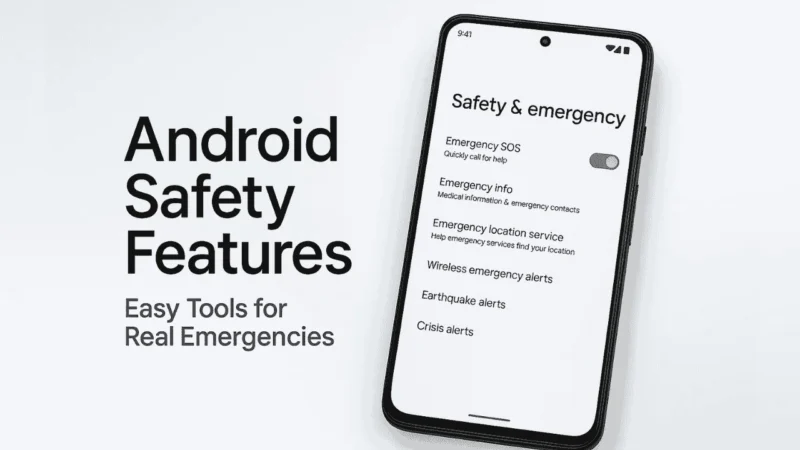
Your Android phone is not just for calls, messages, or entertainment. It has powerful built in safety tools that can help you during emergencies. Whether it is an accident, medical help, personal safety, or a situation where you need immediate assistance, Android provides several features that can make a real difference.
Most people do not know these features exist. So this guide will walk you through how to set them up and how to use them in real life.
Also read: How to Use Android’s Auto-Reply Features for WhatsApp and SMS Without Any App
1. Set Up Your Emergency Information
Your phone can show important details even when it is locked. This helps first responders quickly access your health info.
How to set it:
- Open Settings
- Go to Safety and emergency
- Tap Medical information
- Add details like:
• Blood group
• Allergies
• Medications
• Emergency notes - Add Emergency contacts
Anyone helping you can access this info from the lock screen without unlocking your phone.
2. Enable Emergency SOS for Instant Help
Most Android phones offer Emergency SOS, which sends alerts with your location to your contacts.
To set it up:
- Go to Settings
- Tap Safety and emergency
- Select Emergency SOS
- Enable the shortcut (usually pressing the power button 3 to 5 times quickly)
- Choose what SOS should do:
• Call emergency services
• Share your location
• Send an alert to contacts
• Record video (on some phones)
This feature is useful in situations where you cannot speak or unlock your phone.
3. Use Location Sharing for Real-Time Safety
Android allows you to share your real-time location with trusted people.
You can use:
Google Maps Live Location
- Open Google Maps
- Tap your profile
- Select Location sharing
- Choose duration and contact
Useful when you are traveling alone, meeting new people, or going to an unfamiliar area.
Safety Check (Pixel devices)
Pixel phones can automatically check on you and call for help if you do not respond to a safety prompt.
Useful for night travel, hikes, or risky situations.
4. Turn On Car Crash Detection (Pixel Models)
Some Android models, especially Pixel phones, can detect if you have been in a car crash.
Once enabled:
• Your phone can automatically call emergency services
• Share your location
• Alert your emergency contacts
To turn it on:
Settings → Safety and emergency → Car crash detection
If you travel frequently or drive long distances, this is a highly valuable feature.
5. Use Earthquake Alerts on Android
Android has a built in alert system that warns you before an earthquake reaches your area.
You do not need to install anything.
To ensure it is on:
Settings → Safety and emergency → Earthquake alerts
This can give you a few seconds to take cover, which can save lives.
6. Use Emergency Alerts for Weather, AMBER Alerts, and Local Warnings
Android can warn you about:
• Severe weather
• Floods
• Cyclones
• Missing person alerts
• Public safety notifications
Make sure they are active:
Settings → Notifications → Wireless emergency alerts
These warnings are extremely helpful in real life situations.
7. Use the Built-In Personal Safety App (on Some Phones)
Many Android models come with a Personal Safety app that combines all emergency tools in one place.
You can use it to:
• Set safety checks
• Share emergency locations
• Manage SOS settings
• View medical info
• Add crisis alerts
If your phone has it, pin it to the home screen for quick access.
8. Keep Emergency Numbers Handy
Even if SOS fails, you should know your local emergency numbers like:
• Ambulance
• Police
• Fire services
Save them as emergency contacts so Android can call them automatically during SOS.
9. Practice Using These Features Before You Need Them
Many people panic during emergencies.
Knowing how to use these tools ahead of time makes it easier to act quickly.
Try your SOS shortcut once (without contacting anyone) and learn the timing.
Test location sharing with a trusted friend.
Also read: How Much Cache Is Too Much? The Truth About Android’s Hidden Storage Files!
Final Thoughts
Android’s safety and emergency features are more powerful than most people realize. These small settings can make a huge difference during real life situations like accidents, health issues, travel risks, or personal safety concerns.
Take a few minutes to set them up today. Even if you never need them, it is always better to be prepared. Your phone can be more than a device — it can be a lifeline when you need it the most.