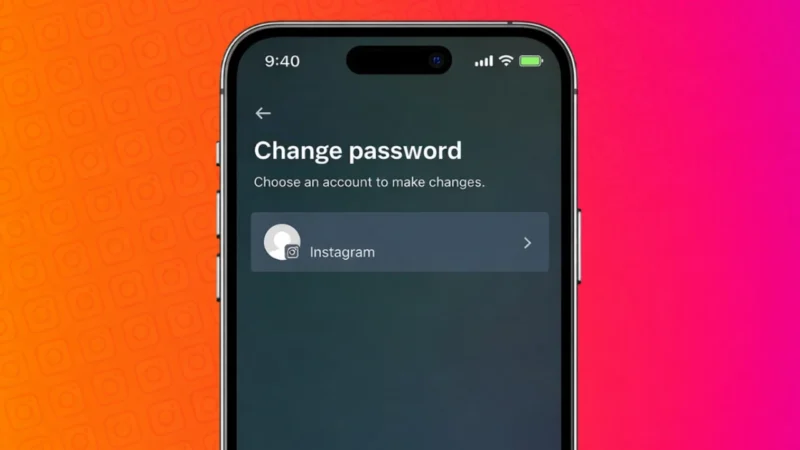
Changing your Instagram password regularly is a smart habit, especially if you use the same password on multiple apps or notice unusual activity on your account. Instagram makes it easy to update your password whether you are using a phone or a computer.
This guide walks you through all official ways to change your Instagram password safely on mobile and desktop.
Also read: How to See What Email You Used for Instagram
When Should You Change Your Instagram Password
You should consider changing your password if:
- You forgot your current password
- You logged in on a public or shared device
- You noticed unfamiliar login alerts
- You want to improve account security
Instagram allows you to change your password anytime without affecting your posts or followers.
How to Change Instagram Password on Android or iPhone
This method works the same on both Android and iOS.
Steps
- Open the Instagram app
- Go to your profile
- Tap the menu icon in the top-right corner
- Select Settings and privacy
- Tap Accounts Center
- Choose Password and security
- Tap Change password
- Enter your current password
- Enter and confirm your new password
- Tap Save
Your password is updated instantly.
Also read: How to Add Your Pronouns on Instagram Profile
How to Change Instagram Password on Desktop or Laptop
You can also change your password using a web browser.
Steps
- Open a browser and go to Instagram
- Log in to your account
- Click More or your profile icon
- Open Settings
- Go to Accounts Center
- Select Password and security
- Click Change password
- Enter your old password
- Set a new password
- Save changes
This works on both Windows and macOS.
How to Reset Instagram Password If You Forgot It
If you cannot remember your current password, use the reset option.
Steps
- Open Instagram login screen
- Tap Forgot password
- Enter your email, username, or phone number
- Follow the link sent by Instagram
- Create a new password
This method is completely official and secure.
Also read: How to Save, Access, or Delete Drafts on Instagram
Tips to Create a Strong Instagram Password
- Use at least 8 characters
- Mix letters, numbers, and symbols
- Avoid names or birthdays
- Do not reuse old passwords
- Enable two-step verification
A strong password helps protect your account from unauthorized access.
Will Changing Password Log You Out Everywhere
In some cases, Instagram may log you out from other devices for security reasons. This is normal and helps keep your account safe.
Also read: How to Unsync Contacts From Instagram (Step-by-Step Guide)
Final Thoughts
Changing your Instagram password on phone or desktop is quick and straightforward. Whether you update it from the app, the website, or reset it after forgetting, Instagram provides secure and official options. Keeping your password strong and updated is one of the easiest ways to protect your account.