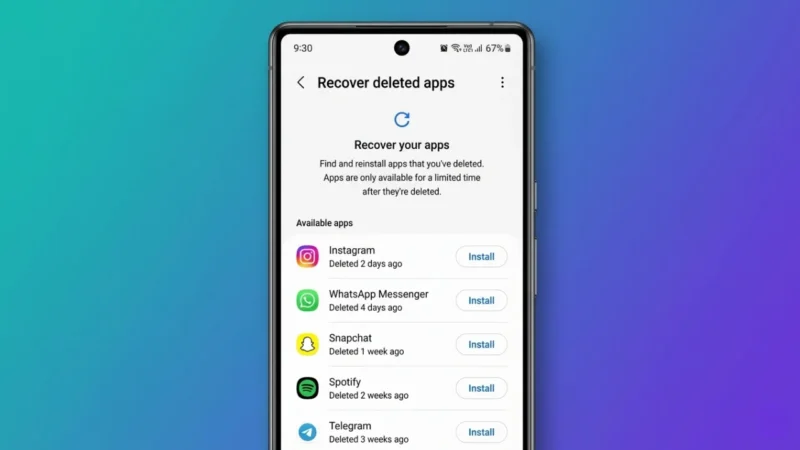
How to Recover Deleted Apps on Android Phones Without Losing Your Data

Accidentally deleting an app on your Android phone can be frustrating, especially if it contains important information, saved settings, or game progress. Fortunately, Android offers several ways to restore deleted apps quickly and easily.

Whether you removed an app by mistake or reset your device recently, there are simple methods that can help you get your apps back.

Also read: How to Convert 4G to 5G on Any Android Phone: Official Methods and Safe Tips

Can Deleted Apps Be Recovered on Android?

In most cases, yes.

When an app is deleted from your Android phone, it remains linked to the Google account that was used to install it. This means you can usually reinstall the app from the Google Play Store without having to search for it again.

However, whether your data returns depends on how the app stores information.

Method 1: Recover Deleted Apps Through Google Play Store

The easiest way to restore deleted apps is through the Play Store’s app history.

Step 1: Open Google Play Store

Launch the Google Play Store on your Android phone.

Step 2: Tap Your Profile Picture

Select your profile icon in the top-right corner.

Step 3: Open Manage Apps & Device

Tap Manage Apps & Device.

Step 4: Select Manage

Open the Manage tab.

Step 5: Filter by Not Installed

Tap the filter option and choose Not Installed.

You will now see apps that were previously downloaded using your Google account but are not currently installed on the device.

Step 6: Reinstall the App

Select the app you want to recover and tap Install.

The app will be downloaded and restored to your phone.

Method 2: Restore Apps After Resetting Your Phone

If you recently purchased a new phone or performed a factory reset, Android may offer to restore previously installed apps during setup.

When signing in with your Google account:

  • Select Restore Backup
  • Choose the desired backup
  • Allow Android to reinstall apps automatically

This can save significant time when setting up a device.

Method 3: Recover Archived Apps

Some Android devices automatically archive unused apps to free up storage.

Archived apps appear with faded icons but are not fully deleted.

To restore an archived app:

  • Tap the app icon
  • Wait for Android to download the required files
  • Open the app normally

Your settings and saved information typically remain intact.

What Happens to App Data After Deletion?

The answer depends on the app.

Some apps store information in cloud services, while others save data only on the device.

Cloud-based apps often restore:

  • Login information
  • Settings
  • Preferences
  • Documents
  • Game progress

Examples include:

  • Google apps
  • WhatsApp (if backed up)
  • Instagram
  • Facebook
  • Spotify

Apps that store data locally may lose information after deletion unless a backup exists.

How to Check Previously Installed Apps

Google Play Store keeps a record of apps you’ve downloaded using your account.

This makes it easy to:

  • Find old apps
  • Reinstall purchased apps
  • Restore productivity tools
  • Recover games

Even apps installed years ago may still appear in your account history.

What If the App Is No Longer Available?

Sometimes an app may be removed from the Play Store.

This can happen if:

  • The developer removes it
  • The app violates Play Store policies
  • The service is discontinued

In such cases, reinstalling may not be possible through the Play Store.

You may need to contact the developer for alternatives.

Tips to Avoid Losing Apps and Data

Enable Google Backup

Google Backup helps preserve important app information and settings.

You can enable it through:

Settings → Google → Backup

Keep Apps Updated

Regular updates improve security and compatibility.

Use Cloud Sync Features

Many apps offer built-in cloud backups that protect your information.

Check Before Deleting Apps

If an app contains important files or progress, confirm that your data is backed up before removing it.

Common Reasons Apps Disappear

Apps may seem deleted for several reasons:

  • Accidental uninstallation
  • Factory reset
  • Device migration
  • Archived apps
  • Software issues
  • Disabled applications

Checking the Play Store history can often reveal whether the app was removed or simply hidden.

Why It Matters

Many users store important information inside apps, including notes, documents, photos, financial records, and communication history.

Knowing how to recover deleted apps can save time and help prevent unnecessary stress when an app disappears unexpectedly.

Final Thoughts

Recovering deleted apps on Android is usually straightforward thanks to the Google Play Store’s installation history. Whether you accidentally removed an app, switched devices, or restored your phone, Android provides several ways to get your apps back quickly.

For the best experience, keep Google Backup enabled and use apps that support cloud syncing. This ensures that even if an app is deleted, your important information remains safe and easy to restore.

How to Recover Deleted Apps on Android Phones Without Losing Your Data

Accidentally deleting an app on your Android phone can be frustrating, especially if it contains important information, saved settings, or game progress. Fortunately, Android offers several ways to restore deleted apps quickly and easily.

Whether you removed an app by mistake or reset your device recently, there are simple methods that can help you get your apps back.

Can Deleted Apps Be Recovered on Android?

In most cases, yes.

When an app is deleted from your Android phone, it remains linked to the Google account that was used to install it. This means you can usually reinstall the app from the Google Play Store without having to search for it again.

However, whether your data returns depends on how the app stores information.

Method 1: Recover Deleted Apps Through Google Play Store

The easiest way to restore deleted apps is through the Play Store’s app history.

Step 1: Open Google Play Store

Launch the Google Play Store on your Android phone.

Step 2: Tap Your Profile Picture

Select your profile icon in the top-right corner.

Step 3: Open Manage Apps & Device

Tap Manage Apps & Device.

Step 4: Select Manage

Open the Manage tab.

Step 5: Filter by Not Installed

Tap the filter option and choose Not Installed.

You will now see apps that were previously downloaded using your Google account but are not currently installed on the device.

Step 6: Reinstall the App

Select the app you want to recover and tap Install.

The app will be downloaded and restored to your phone.

Method 2: Restore Apps After Resetting Your Phone

If you recently purchased a new phone or performed a factory reset, Android may offer to restore previously installed apps during setup.

When signing in with your Google account:

  • Select Restore Backup
  • Choose the desired backup
  • Allow Android to reinstall apps automatically

This can save significant time when setting up a device.

Method 3: Recover Archived Apps

Some Android devices automatically archive unused apps to free up storage.

Archived apps appear with faded icons but are not fully deleted.

To restore an archived app:

  • Tap the app icon
  • Wait for Android to download the required files
  • Open the app normally

Your settings and saved information typically remain intact.

What Happens to App Data After Deletion?

The answer depends on the app.

Some apps store information in cloud services, while others save data only on the device.

Cloud-based apps often restore:

  • Login information
  • Settings
  • Preferences
  • Documents
  • Game progress

Examples include:

  • Google apps
  • WhatsApp (if backed up)
  • Instagram
  • Facebook
  • Spotify

Apps that store data locally may lose information after deletion unless a backup exists.

How to Check Previously Installed Apps

Google Play Store keeps a record of apps you’ve downloaded using your account.

This makes it easy to:

  • Find old apps
  • Reinstall purchased apps
  • Restore productivity tools
  • Recover games

Even apps installed years ago may still appear in your account history.

What If the App Is No Longer Available?

Sometimes an app may be removed from the Play Store.

This can happen if:

  • The developer removes it
  • The app violates Play Store policies
  • The service is discontinued

In such cases, reinstalling may not be possible through the Play Store.

You may need to contact the developer for alternatives.

Tips to Avoid Losing Apps and Data

Enable Google Backup

Google Backup helps preserve important app information and settings.

You can enable it through:

Settings → Google → Backup

Keep Apps Updated

Regular updates improve security and compatibility.

Use Cloud Sync Features

Many apps offer built-in cloud backups that protect your information.

Check Before Deleting Apps

If an app contains important files or progress, confirm that your data is backed up before removing it.

Common Reasons Apps Disappear

Apps may seem deleted for several reasons:

  • Accidental uninstallation
  • Factory reset
  • Device migration
  • Archived apps
  • Software issues
  • Disabled applications

Checking the Play Store history can often reveal whether the app was removed or simply hidden.

Why It Matters

Many users store important information inside apps, including notes, documents, photos, financial records, and communication history.

Knowing how to recover deleted apps can save time and help prevent unnecessary stress when an app disappears unexpectedly.

Also read: How to Charge Your Android Phone Faster: Best Settings and Safe Tips

Final Thoughts

Recovering deleted apps on Android is usually straightforward thanks to the Google Play Store’s installation history. Whether you accidentally removed an app, switched devices, or restored your phone, Android provides several ways to get your apps back quickly.

For the best experience, keep Google Backup enabled and use apps that support cloud syncing. This ensures that even if an app is deleted, your important information remains safe and easy to restore.

Leave a Comment