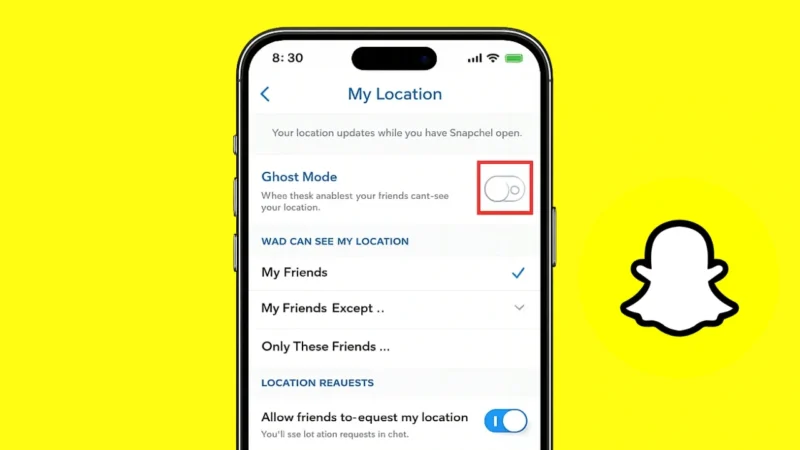
Snapchat includes a feature called Snap Map that allows friends to see your location when you open the app. While this feature can be useful for meeting friends or seeing where people are, many users prefer more privacy. If you do not want others to see your location, Snapchat offers a simple option called Ghost Mode.
In this guide, you will learn how to turn off location sharing on Snapchat and enable Ghost Mode on both Android and iPhone.
Also read: How to Remove Friends on Snapchat Using Two Easy Methods
What Is Snapchat Ghost Mode
Ghost Mode is a privacy setting in Snapchat that hides your real-time location from everyone on Snap Map. When this option is enabled, your Bitmoji will no longer appear on the map and your friends cannot see where you are.
You can turn Ghost Mode on permanently or set it for a limited time.
How to Turn On Ghost Mode on Snapchat
Follow these steps to hide your location using Ghost Mode.
Step 1: Open Snapchat
Launch the Snapchat app on your Android or iPhone.
Step 2: Access Snap Map
Pinch the screen with two fingers on the camera screen. This opens Snap Map.
Step 3: Open Map Settings
Tap the settings icon in the top right corner of the map screen.
Step 4: Enable Ghost Mode
You will see a toggle labeled Ghost Mode. Turn it on.
Step 5: Choose Duration
Snapchat allows you to choose how long Ghost Mode stays active:
- 3 Hours
- 24 Hours
- Until Turned Off
Select the option you prefer.
Once enabled, your location will be hidden from everyone on Snapchat.
Also read: How to delete Snapchat on Mobile and Web: A Simple Step-by-Step Guide
How to Stop Sharing Location With Specific Friends
If you do not want to hide your location from everyone, Snapchat allows you to control who can see it.
Follow these steps:
- Open Snap Map
- Tap the settings icon
- Look for Who Can See My Location
- Choose one of these options:
- My Friends
- My Friends Except…
- Only These Friends
This lets you customize your location privacy.
How to Turn Off Snapchat Location Access From Phone Settings
You can also stop Snapchat from accessing your location through your phone settings.
On Android
- Open Settings
- Go to Apps
- Tap Snapchat
- Select Permissions
- Turn off Location
On iPhone
- Open Settings
- Scroll down and tap Snapchat
- Tap Location
- Select Never
This prevents Snapchat from accessing your device location completely.
Why You Might Want to Disable Snapchat Location
There are several reasons users turn off location sharing.
- Protect personal privacy
- Avoid showing real-time movement
- Reduce location tracking by others
- Limit who can see your whereabouts
Ghost Mode gives you full control over your visibility on Snap Map.
Also read: How to See Mutual Friends on Snapchat
Final Thoughts
Snapchat’s Snap Map can be useful, but not everyone wants their location visible to others. Enabling Ghost Mode is the easiest way to hide your location while still using Snapchat normally.
You can also customize who sees your location or completely block the app from accessing location services through your phone settings. This gives you better control over your privacy while using the platform.
With these simple steps, you can keep your Snapchat activity private and secure.