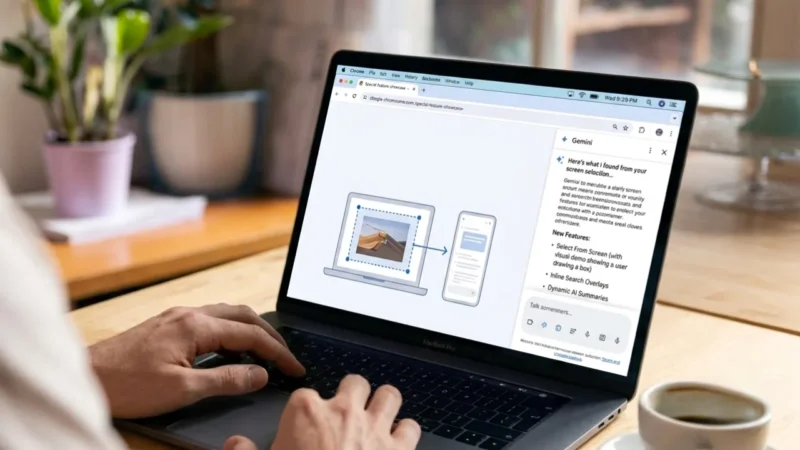
Google is making Gemini in Chrome more powerful with the rollout of a new feature called Select From Screen. The tool allows users to quickly capture and attach content directly from a webpage to Gemini, making it easier to ask questions, get explanations, and generate ideas without manually describing what appears on the screen.
The feature is arriving with Chrome version 149 and aims to bring a desktop experience similar to Google’s popular Circle to Search feature on Android devices.
Also read: Meta Unveils New AI-Powered Smart Glasses With Muse Spark AI, 12MP Camera and Live Translation
Gemini in Chrome Gets a Smarter Way to Search
Over the past few years, Circle to Search has become one of Google’s most widely used AI-powered tools, allowing users to search for information simply by selecting content on their smartphone screen. Google is now bringing a similar concept to desktop users through Gemini in Chrome.
With the new Select From Screen feature, users can highlight a specific section of a webpage and send it directly to Gemini. Instead of typing lengthy descriptions or manually explaining what they are looking at, users can simply select the relevant content and ask Gemini for help.
The feature is integrated into the existing Ask Gemini option available within Google Chrome.
How the Feature Works
The new tool lets users draw a selection box around any part of a webpage and attach it directly to a Gemini prompt. Once selected, Gemini can analyze the content and provide responses based on what appears inside the highlighted area.
Google says the feature can be useful in a variety of situations, including:
- Comparing products such as shoes, gadgets, or clothing
- Understanding charts, diagrams, and technical illustrations
- Getting explanations for complex visual content
- Generating design suggestions from website elements
- Transforming ideas into creative concepts
- Receiving contextual assistance without leaving the browser
Because Gemini can see exactly what the user is referring to, responses are often faster and more accurate.
How to Use Select From Screen in Chrome
Google has outlined a simple process for accessing the new feature:
- Open Google Chrome on your computer.
- Click the Ask Gemini button at the top of the browser.
- Select the Add menu by clicking the plus (+) icon.
- Choose Select From Screen.
- Draw a box around the content you want Gemini to analyze.
- Type your question or request in the prompt field.
- Press Esc to exit selection mode when finished.
Users can also resize or reposition the selected area by dragging the edges of the selection box before submitting it to Gemini.
Designed for Faster AI Assistance
One of the biggest advantages of Select From Screen is that it eliminates the need to manually describe on-screen content. Whether you’re looking at a product comparison, infographic, design layout, or educational diagram, Gemini can understand the context directly from the selected area.
This can save time and make AI interactions more natural, especially for users who frequently rely on Gemini for research, learning, shopping decisions, or creative work.
Availability
The Select From Screen feature is currently rolling out with Chrome version 149. Users who have already updated to the latest version may need to restart their browser before the feature becomes available.
To check for updates, users can navigate to:
Chrome Menu → Settings → About Chrome
If an update is available, Chrome will automatically download and install it.
Also read: Meta Names CRED Founder Kunal Shah as New Global Head of WhatsApp Following Will Cathcart’s Exit
Final Thoughts
Google continues to expand Gemini’s capabilities inside Chrome, and the new Select From Screen feature is another step toward making AI assistance more intuitive. By allowing users to highlight and share on-screen content directly with Gemini, the company is reducing the friction involved in searching, learning, and problem-solving online.
For users who regularly use Gemini in Chrome, this update could significantly improve productivity by making AI-powered searches faster, more visual, and more context-aware.